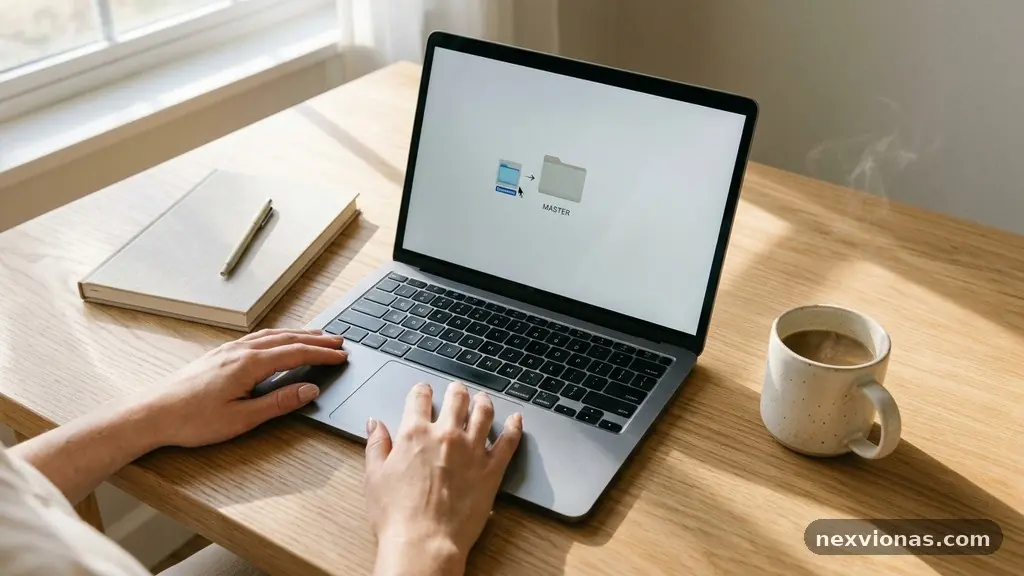
Simple ways to organize downloaded files without losing important documents start with one clear rule: every file needs a predictable home, a useful name, and a second copy if it matters. A tidy download folder saves time, prevents accidental deletion, and makes tax forms, receipts, contracts, photos, and work materials easier to find under pressure. The best system doesn’t require expensive software or hours of daily maintenance.
It relies on a small folder structure, consistent file naming conventions, regular backups, and a quick weekly reset. Once those habits are in place, downloaded files stop piling up and start moving through a simple, reliable workflow.
Start With One Safe Sorting System
The fastest answer is to create a temporary inbox for new downloads, sort files into a small number of permanent categories, and protect important documents with a backup. Don’t begin by creating dozens of folders. A system with too many choices makes every download feel like a filing project, so files remain untouched.
On a computer, rename the default Downloads folder to something memorable only if your operating system and applications will still point to it correctly. Otherwise, leave it in place and create a few folders inside it, such as To Sort, Documents, Images, Work, and Archive. The To Sort folder acts as a short-term landing zone rather than a permanent storage area.
Use a three-step decision for every item: keep, move, or delete. Keep files that support a current task or may be needed later, move files into a named destination, and delete installers, duplicate attachments, expired advertisements, and files you can safely obtain again.
A practical download folder organization system might look like this:
- To Sort: newly downloaded files waiting for review.
- Personal: identity records, medical paperwork, travel files, and household documents.
- Money: invoices, receipts, tax records, bank statements, and insurance paperwork.
- Work or School: active projects, reference material, assignments, and reports.
- Media: photos, audio, videos, and graphics that are not part of a specific project.
- Archive: older material that must be retained but is no longer active.
Keep the first version deliberately small. After two or three weeks, you’ll see which categories need a more specific folder and which ones never get used.
Build a Folder Structure You Can Predict
A useful folder structure answers two questions immediately: what is this file, and when or why will I need it? For example, a household system could use Money/Taxes/2025, Home/Utilities, and Health/Insurance. A freelance worker might choose Clients/Client Name/Project/Active and Clients/Client Name/Project/Archive.
Choose either subject-first or project-first organization and apply it consistently. Subject-first works well for records that recur every year, while project-first is better for work involving several file types, deadlines, and collaborators.
| Organization approach | Best for | Example path |
|---|---|---|
| Subject first | Household records and recurring paperwork | Money/Insurance/2025 |
| Project first | Work, school, and creative projects | Website Redesign/Research |
| Date first | Photos, receipts, and chronological records | 2025/2025-08-August |
| Client first | Freelancers, agencies, and consultants | Client Name/Invoices/2025 |
Date-based folders are especially useful when documents arrive monthly or annually. A folder named 2025-08 August sorts correctly by year and month, unlike folders named only “August,” which become confusing after several years.
Avoid nesting folders so deeply that opening a file feels like travelling through a maze. Four or five levels are usually enough, and a search bar should supplement the structure rather than rescue a poorly designed one.
Before moving anything, write down the main folders in a plain text note. This small reference helps family members, colleagues, or your future self understand where a file belongs without making a new category for every unusual download.
Use File Names That Carry Useful Information
Good file naming conventions make search results understandable even when files are separated from their original folder. A name such as 2025-04-15_Health-Insurance_Renewal.pdf tells you the date, subject, and purpose without opening the document.
Use dates in year-month-day order: YYYY-MM-DD. This format sorts chronologically on Windows, macOS, Google Drive, Dropbox, and OneDrive, and it avoids confusion between American and international date styles.
Include a project, person, or organization when that detail distinguishes one file from another. For example, 2025-02-01_Acme-Invoice_1048.pdf is more useful than invoice-final.pdf, especially if you work with several clients.
Skip characters that may cause problems across devices, including slashes, quotation marks, question marks, and long strings of punctuation. Hyphens and underscores are dependable separators, while short names are easier to read on a phone.
Version labels also matter. Use names such as Proposal_v01.docx, Proposal_v02.docx, and Proposal_APPROVED.pdf rather than repeatedly adding words like “new,” “final,” and “final-final.” If a file is formally approved, put that status in the name and store it in an approved or completed folder.
Here is a practical naming formula:
- Date: when the file was created, received, or relevant.
- Subject: the person, organization, account, or project.
- Document type: invoice, contract, receipt, report, or statement.
- Status or version: draft, review, approved, or v03.
Not every file needs every element. A downloaded photograph may need only 2025-07-Family-Reunion.jpg, while a legal document benefits from a precise date and status.
Separate Important Documents From Disposable Downloads
Downloaded files are not equally valuable, so treat them according to the damage their loss would cause. A tax document, signed lease, passport scan, medical record, or client contract deserves a deliberate storage location and document backup. A software installer or temporary PDF guide may not.
Create a clearly named folder such as Important Documents only if it has a defined purpose. Inside it, use practical subfolders like Identity, Legal, Health, Finance, and Housing. Restrict access to this folder if the computer is shared.
Keep sensitive documents out of a casually shared desktop folder. If a family member needs access, use a protected cloud folder or a separate account rather than relying on an obscure folder name to provide privacy.
Scanning and downloading can create multiple copies with unclear status. When you have several versions, compare the dates and contents before deleting anything. A file called “signed lease” should not replace an older version until you’ve checked that every page and signature is present.
For records with legal or financial importance, preserve the original format when possible. You may also create a PDF copy for easy reading, but don’t discard an original file merely because a converted version looks cleaner.
The Cybersecurity and Infrastructure Security Agency’s ransomware guidance recommends maintaining protected backups, a useful reminder that organization and recovery belong together. A perfectly named file is still vulnerable if the only copy sits on a damaged laptop.
Use Backups and Cloud Storage Carefully
Cloud storage can make document backup easier, but synchronization is not identical to backup. If you delete a file from a synced Google Drive, Dropbox, or OneDrive folder, that deletion may also appear on connected devices. Check the service’s recovery and version-history settings before treating it as your only safeguard.
A strong routine keeps at least two copies in different places. One copy might live on your computer and another in cloud storage, while especially important records also go to an external drive that is disconnected after the backup finishes.
Cloud folders work best when you sync only the material you actively use. Large video collections, old installers, and archived project files can consume local space and create unnecessary duplication. Use online-only storage features where available, but confirm that an important file is available offline before travelling or attending a meeting.
Protect accounts with unique passwords and multifactor authentication. A cloud account containing identity documents, tax records, or contracts should not depend on a reused password from an unrelated website.
Set a calendar reminder for a monthly backup check. Open several files rather than assuming the backup worked, and verify that recent documents appear in the destination. A backup that exists but cannot be opened is not a dependable backup.
For irreplaceable records, keep a simple inventory outside the main folder. List the document category, storage location, and last verification date, but avoid writing passwords or sensitive details in that note.
Automate Repetitive Sorting Without Losing Control
Automatic file sorting can reduce clutter when downloads follow predictable patterns. Operating systems and third-party utilities can move files based on extensions, names, or download locations, but automation should begin with low-risk categories such as images, installers, and compressed archives.
For example, files ending in .jpg, .png, and .gif can move to an Images folder, while .zip and .dmg files can move to an Installers or Archives folder. Don’t automatically relocate PDFs if PDFs include both disposable reading material and important contracts.
Rules based only on file type categories are convenient but limited. A PDF could be a bank statement, a restaurant menu, a signed agreement, or a temporary instruction sheet, so high-value documents still need human review.
Schedule automation to run after a delay rather than the instant a file arrives. A short review period gives you time to rename a document, move it into a project folder, or prevent a sensitive file from being placed in a broadly shared location.
Check automated rules after software updates or operating-system changes. A rule that once pointed to Documents/Work may fail after a folder is renamed, leaving files in the download folder without making the problem obvious.
Use automation for consistency, not judgment. The best division of labor is mechanical sorting for obvious files and personal review for documents whose value depends on context.
Clean Duplicates and Review the Folder Safely
Duplicate file removal can free space and reduce confusion, but it deserves caution. Two files with similar names may contain different versions, and two files with the same name may have different contents if they came from separate downloads.
Start with obvious duplicates created by browser downloads, such as report (1).pdf and report (2).pdf. Compare file sizes, modification dates, and contents before deleting either copy. If one is newer, rename it clearly and move it to the proper project folder.
Never perform a mass deletion from search results without reviewing the selected items. A duplicate-finder tool may identify identical images accurately but struggle with documents that have metadata differences or minor revisions.
Keep an archive for records that must be retained but are rarely accessed. Organize it by year or project, then add an archive date to the folder name, such as Archive_Projects_2023. This keeps old files available without allowing them to crowd active work.
Review the To Sort folder once a week. A useful session can take less than fifteen minutes if you answer the same questions each time: Is it needed, where does it belong, does it have a clear name, and is it backed up?
For a larger cleanup, work in batches. Sort PDFs first, then images, then office documents, and finally miscellaneous files. If you become uncertain, move an item into a Review folder rather than deleting it during a rushed session.
Make the System Easy to Maintain
The best file management system is the one you can maintain on a busy week. A process that requires perfect discipline will collapse after a deadline, while a short weekly reset can survive changes in work, devices, and priorities.
Choose one regular cleanup time, such as Friday afternoon or Sunday evening. During that appointment, clear obvious junk, rename important downloads, move active files, and check whether anything needs document backup.
Keep a small “read me” note in the main folder. It can explain your folder structure, naming pattern, archive rules, and backup location in a few lines. This is especially helpful if another person may need to find a utility bill, insurance record, or shared project.
Review the structure every three months rather than redesigning it every week. If a folder receives only one or two files per year, it may not deserve its own category. If you repeatedly search for the same type of document, that pattern signals a useful new folder.
Use search as a partner to browsing. A clear file name lets you search for “2025 insurance renewal” even if you don’t remember whether the file is under Money, Health, or Housing.
Keep temporary work separate from permanent records. A project’s drafts, downloaded references, and exported images can live in a working folder, while approved deliverables and signed documents move into a protected archive.
Small habits make the system feel lighter. Rename a file when you download it, move it before opening the next task, and never let “I’ll sort it later” become the default destination.
FAQ
How often should I organize my Downloads folder?
A weekly review is enough for most people, especially if the folder is used as a temporary inbox. People who download many invoices, images, or work files may benefit from a short daily reset, while occasional users can review it every two weeks.
Should I organize files by type or by project?
Use file type categories for general materials such as photos, installers, and audio. Use project-based folders for work or school collections where contracts, images, spreadsheets, and drafts belong together.
Is Google Drive, Dropbox, or OneDrive a real backup?
It can be part of a backup plan, but synchronization alone is not enough. Deleted or corrupted files may sync across devices, so keep version history enabled and maintain another copy for documents that would be difficult to replace.
What should I do with files I’m unsure about?
Move them to a temporary Review folder and set a date to revisit it. This prevents accidental deletion while keeping uncertain items out of the main download area.
How can I prevent duplicate downloads?
Use descriptive names, check the destination before downloading again, and remove obvious duplicates during your weekly review. For important documents, compare the contents before deleting a file that merely appears to be a copy.
Keep the System Simple and Safe
Simple ways to organize downloaded files without losing important documents depend on three habits: give every file a predictable destination, name it so search can find it, and keep a verified second copy of anything valuable. Start with a few folders, a weekly review, and a cautious approach to automatic file sorting.
Today, create a To Sort folder, move obvious clutter, rename three important files, and back them up. That small start is enough to turn an overloaded download folder into a calmer, safer file management system you can keep using.