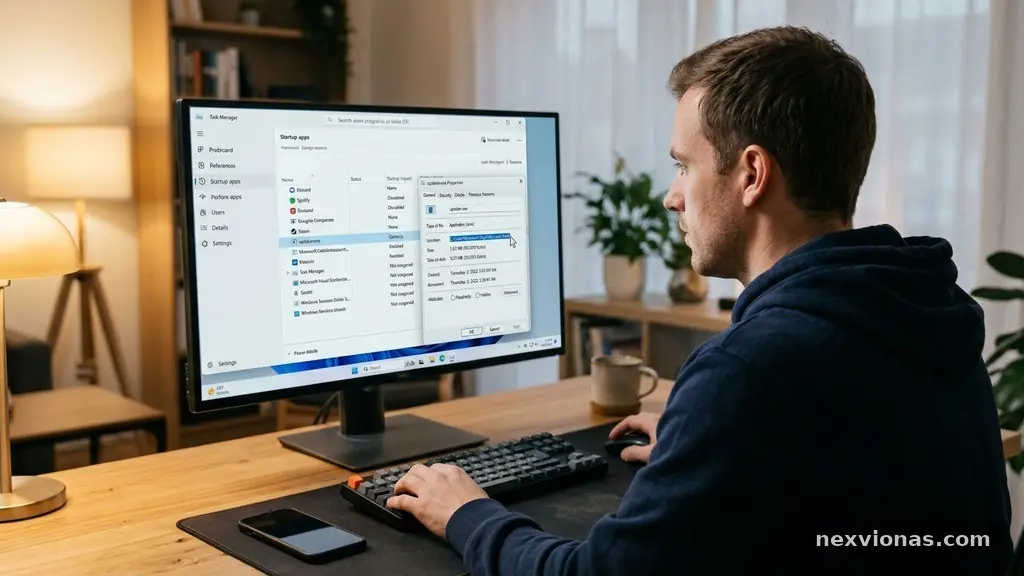
Identifying Unnecessary Startup Programs Without Disabling Important Tools starts with one simple rule: don’t remove an item just because its name looks unfamiliar. Startup programs range from harmless update checkers to device drivers, antivirus software, accessibility tools, and cloud synchronization services that you may rely on every day.
The safest approach is to identify each program, check its publisher and purpose, measure its startup impact, and disable only items that are nonessential. You’ll improve boot time without turning off protection, breaking hardware features, or creating confusing errors after the next restart.
Start With a Safe Yes-or-No Test
The short answer is to disable programs that are optional, recognizable, and not needed immediately after sign-in. Leave enabled anything tied to security, hardware, system access, business software you use at once, or a feature that would stop working without its background process.
A startup entry is not automatically bad. A printer utility might check ink levels, a password manager might load its browser integration, and a cloud drive might begin synchronization as soon as Windows or macOS starts. The question is not “Does this use memory?” but “Do I need this running before I deliberately open it?”
Begin by recording the current list rather than changing several entries at once. Take a screenshot or write down the program name, publisher, status, and startup impact so you can reverse a decision without guessing later.
Use this quick classification before touching a setting:
- Keep enabled: antivirus software, Microsoft Defender components, device drivers, touchpad or graphics support, accessibility tools, and security utilities.
- Usually optional: music launchers, game clients, meeting apps, shopping assistants, update schedulers, and quick-launch panels.
- Investigate first: entries with a blank publisher, random-looking names, unusual file locations, or a description that doesn’t match installed software.
- Disable cautiously: backup clients, cloud synchronization, password managers, encryption tools, and workplace security software.
Disable one item at a time, restart, and use the computer normally for a day or two. That measured process is the foundation of identifying Unnecessary Startup Programs Without Disabling Important Tools because it turns a risky cleanup into a reversible experiment.
Review Startup Apps in Windows 11 and Windows 10
On Windows 11 and Windows 10, the main place to review startup behavior is Task Manager. Press Ctrl + Shift + Esc, select Startup apps in Windows 11, or choose the Startup tab in older Windows 10 layouts.
Task Manager displays the program name, publisher, status, and startup impact. The impact label is useful, but it isn’t a verdict; a program marked “High” may be important on your machine, while several “Low” entries can still create clutter and background processes.
Microsoft’s own explanation of startup management is available in its Windows startup applications guidance. The interface can vary slightly after updates, so the exact menu wording may differ between releases.
Sort the list by status first. Disabled entries are already prevented from launching automatically, while enabled entries deserve your attention, especially if you don’t recognize them or never use the related application.
Next, sort by startup impact and inspect the highest entries individually. A high-impact video-conferencing helper may be worth keeping if you join meetings every morning, whereas a game launcher that adds several seconds to startup can usually wait until you choose to open it.
Use the app’s role, not its name alone
Names such as “helper,” “agent,” “launcher,” and “update” are too vague to support an immediate decision. Expand your investigation by right-clicking an entry and checking options such as Open file location, Search online, or Properties, depending on the Windows version.
Be careful with the file location. A legitimate program normally sits inside a recognizable folder under Program Files, Program Files (x86), or a known application directory, while a random executable in a temporary folder deserves closer examination.
Check macOS Login Items and Background Activity
Mac users should review macOS Login Items rather than relying on Windows terminology. In recent versions, open System Settings, choose General, and select Login Items to see applications that open at login and services allowed to run in the background.
Older macOS versions use System Preferences, followed by Users & Groups and the Login Items tab. The appearance differs, but the decision is the same: distinguish an application you want available immediately from a service required for security, syncing, hardware, or workplace management.
Some entries appear as familiar applications, while others represent background permissions rather than a visible window. A menu-bar utility may monitor battery health, manage external displays, or control a keyboard, even though you rarely launch it directly.
Cloud synchronization needs special care on macOS. Removing a Dropbox, OneDrive, Google Drive, or similar login item may not delete files, but it can delay synchronization and leave recent changes unavailable on another device until the application is started manually.
Review the application’s settings before removing its login permission. Many programs let you keep background updates or file syncing while preventing the full window from opening at login, which is often a better compromise than disabling the service entirely.
Pay attention to managed Macs
A work-owned Mac may contain endpoint security, inventory, virtual private network, or device-management software that looks unfamiliar. Those tools can be required by an employer, school, or client, and removing their login access may cause compliance warnings or loss of network access.
If a Mac is managed by an organization, ask the administrator before changing a background item you can’t identify. A personal computer gives you more control, but an organization-managed device may have policies that deliberately prevent users from disabling important tools.
Separate Essential Tools From Convenience Apps
The most reliable way to classify a startup program is to connect it to a specific function. Ask what would stop working if the item did not launch: protection, hardware, files, communication, or merely convenience.
Security software belongs near the top of the keep list. Microsoft Defender and reputable antivirus software may use several services rather than one obvious application, so disabling a visible tray icon does not necessarily turn off protection safely; it may simply create a misleading impression that everything is still working.
Device drivers and related control panels also deserve caution. Graphics software, audio drivers, touchpad utilities, printer services, Bluetooth managers, and hotkey tools can support functions that Windows or macOS doesn’t expose through ordinary settings.
Cloud synchronization sits in the middle. If your work depends on current files across a laptop and desktop, starting the sync client automatically may be important, but a personal user who opens it only once a week may reasonably launch it manually.
Convenience applications are the easiest candidates for review. A streaming service, game launcher, chat app, update notifier, or meeting client may be useful without needing permission to start before you ask for it.
| Program category | Typical reason it starts | Default action |
|---|---|---|
| Antivirus or Microsoft Defender component | Threat monitoring and security notifications | Keep enabled |
| Device driver or hardware utility | Graphics, audio, touchpad, keyboard, printer, or display features | Keep unless its role is confirmed |
| Cloud synchronization client | File syncing and status updates | Keep if current files matter immediately |
| Meeting or messaging application | Notifications, calls, and quick access | Optional; disable if manual launch is fine |
| Game launcher or media app | Automatic updates and convenience access | Usually safe to disable |
| Unknown executable with no publisher | Unclear | Investigate before changing it |
This table is a starting point, not a substitute for checking the individual software. A company’s updater may be optional, while the same company’s security agent could be essential.
Verify Unknown Entries Before Disabling Them
Unfamiliar does not mean malicious. Software publishers often use a corporate name, a product name, or a technical component name that doesn’t match the shortcut you see in the Start menu.
Right-click the entry and inspect its properties. Look for the publisher, signed details, product description, version information, and installation path, then compare those details with applications you knowingly installed.
Search the exact file name only after recording its location. Searching a common name such as “agent.exe” can produce confusing results, while checking a signed executable inside a recognizable vendor folder gives you more useful context.
Do not trust a publisher field blindly. Malware can imitate familiar names, use misspellings, or place an executable in a deceptive folder. A genuine security signature and a normal installation path provide stronger evidence than a friendly-looking label.
Watch for warning signs
An entry deserves extra scrutiny if it has no publisher, launches from a temporary directory, uses a string of random characters, or appeared after a download you don’t remember approving. Frequent pop-ups, browser redirects, unexplained CPU use, and disabled security settings strengthen the case for a malware scan rather than a simple startup change.
Run a security scan before experimenting with suspicious software. Disabling a malicious startup item may stop one symptom while leaving other components active, so use trusted security tools and follow their removal recommendations.
Check installed applications as well. If you find a program you never use and its startup entry is confusing, uninstalling the parent application through Windows Settings or macOS Applications may be cleaner than disabling a single shortcut.
Measure Boot Time and Background Processes
Startup cleanup should solve a real problem, not chase a number in Task Manager. Note how long the computer takes to become responsive, whether the disk stays busy after sign-in, and which background processes consume CPU or memory during the first few minutes.
Task Manager’s startup impact measures how much an entry contributes during startup activity, but it does not describe every later effect. A program with a small launch cost may keep a browser helper, updater, or synchronization process running for hours.
Open the Processes view after startup and observe CPU, memory, disk, and network use. Look for patterns across several restarts rather than treating one unusually slow boot as proof that a particular program is responsible.
Windows may also take longer because of updates, a nearly full drive, failing hardware, or too many browser tabs restored at login. Removing startup programs can help, but it won’t fix a mechanical drive that is failing or a system overloaded by a large update.
Measure after each change. If disabling one optional launcher reduces boot time or makes the desktop responsive sooner, keep the change; if there is no noticeable benefit, restoring the setting may be preferable because the program’s convenience could matter more than a tiny gain.
Use a simple comparison record
Create three notes: the original boot experience, the change you made, and the result after restarting. Include practical observations such as “printer controls missing,” “files synced only after manual launch,” or “no difference noticed,” because those details are more useful than memory alone.
Keep the testing environment consistent. Restart at roughly the same point in your workday, close the same applications, and give cloud synchronization enough time to complete before deciding that a service is broken.
One change at a time may feel slower, but it protects you from the classic troubleshooting problem of disabling six programs and then not knowing which one caused a missing feature.
Disable Startup Items Without Creating Problems
Use the built-in control for the operating system whenever possible. In Windows, disabling an entry in Task Manager’s Startup Apps list prevents automatic launch without uninstalling the program; in macOS, removing a Login Item changes login behavior without deleting the application.
That distinction matters. If you later discover that a meeting app no longer shows notifications or a cloud drive stops syncing promptly, you can restore the setting without reinstalling software.
Before disabling anything, make sure you know how to reverse it. Record the original status, take a screenshot, and note the related application so you don’t mistake a harmless configuration change for a system failure.
Restart after making the change, then test the specific feature associated with the program. Check audio, display brightness, printing, Bluetooth devices, file syncing, password autofill, security alerts, and any specialized equipment you use for work.
Some startup software has its own preference. A program may offer choices such as “launch at login,” “start minimized,” “run in background,” or “check for updates automatically.” Adjusting those options can reduce visible clutter while preserving the service you actually need.
Know when not to uninstall
Disabling an entry is safer than uninstalling a driver or security component during the first round of testing. Removal can affect shared libraries, scheduled tasks, browser extensions, and other applications that depend on the same package.
If an application is unwanted, use the normal uninstall process after confirming that no needed feature depends on it. Avoid deleting executable files manually from system folders, since that can leave broken references and make later troubleshooting harder.
For workplace systems, contact IT before changing endpoint protection, remote-support agents, VPN software, or management tools. Their startup behavior may be part of the organization’s access and security requirements.
Build a Maintenance Habit That Stays Reversible
Startup lists change over time. Installing a printer, video editor, game, browser extension, or cloud storage client may add a new entry, and software updates can re-enable a component that you previously turned off.
Review the list every few months rather than every day. A short check after installing several new applications is enough for most home users, while people who install development tools or specialized hardware may need to review more often.
Keep a small record of intentional choices. Write down why you left a service enabled, such as “needed for second monitor brightness controls,” or why you disabled another, such as “game launcher opened automatically but was used once a month.”
That record reduces future confusion and makes it easier to restore settings after a major operating-system update. It also helps another household member or technician understand that an entry was changed deliberately.
Review notifications and permissions as well as startup entries. An application might not open a window but still run background processes, send alerts, access files, or synchronize data, so startup management is only one part of controlling what runs automatically.
Keep your operating system and security tools current. Updates can fix startup bugs, improve malware detection, and correct compatibility problems that look like excessive startup activity.
Finally, don’t treat a fast boot as the only measure of a healthy computer. A system that starts quickly but lacks active protection, fails to synchronize work files, or loses important device controls has not been improved.
Frequently Asked Questions
Is it safe to disable every high-impact startup program?
No. A high startup impact rating describes resource use, not whether the program is unnecessary. An antivirus service, device utility, or cloud synchronization client can have a noticeable impact while still serving a function you need.
What should I do if a startup entry has no publisher?
Don’t disable it automatically. Check its file location, properties, installation date, and relationship to installed software, then run a trusted security scan if the file looks suspicious or behaves unusually.
Will disabling a startup app uninstall it?
No. Disabling normally prevents automatic launch while leaving the application installed. You can usually open it manually later and restore its startup permission if a feature or notification is missing.
Can I disable cloud synchronization at startup?
You can if you’re comfortable starting the service manually, but understand the trade-off. Files may not upload or download until the client runs, which can leave another computer or phone with outdated documents.
Why did a disabled program come back after an update?
Some application updates recreate startup permissions or install a new helper component. Review the entry again, change the program’s own launch preference if available, and check whether the update introduced a separate service.
Make Careful Changes With Confidence
Good startup management is selective, not aggressive. By checking the publisher, understanding the program’s role, measuring startup impact, and changing one entry at a time, you can reduce unnecessary background activity without sacrificing security or hardware support.
Keep a record, test the features you depend on, and revisit the list after major installations or updates. That method makes identifying Unnecessary Startup Programs Without Disabling Important Tools a practical maintenance habit rather than a risky one-time cleanup.