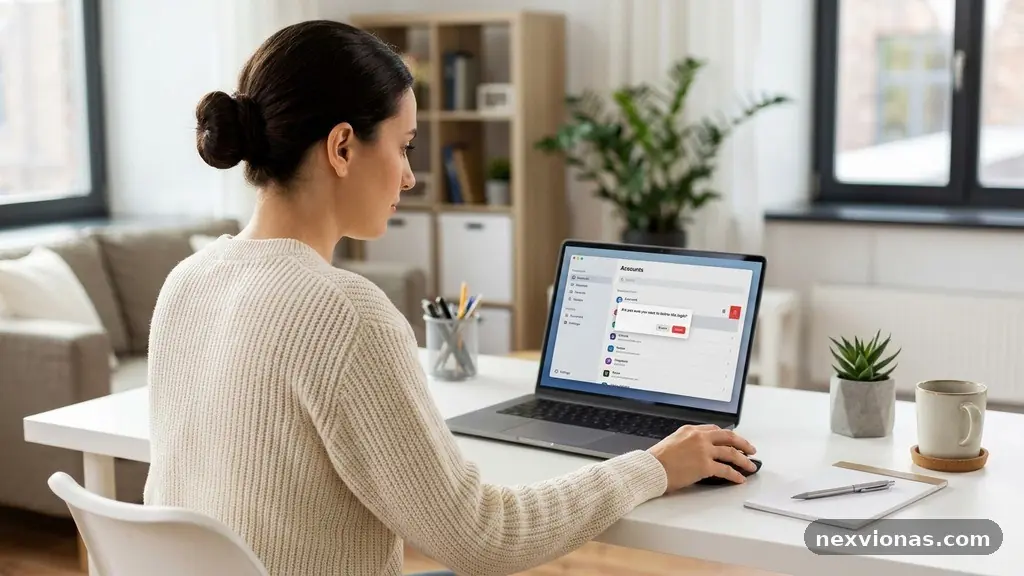
Reviewing Saved Passwords and Remove Accounts You No Longer Use is a practical privacy task that can reduce the number of places holding your personal information. Old shopping profiles, forgotten forums, trial subscriptions, and unused apps may still contain addresses, payment details, private messages, or security questions.
A careful review helps you find reused or compromised passwords, close accounts that serve no purpose, and keep important logins protected with strong unique passwords. The safest approach is methodical: locate saved credentials, create an account inventory, decide what stays, and verify that unwanted accounts are truly closed.
Start With a Password and Account Inventory
The direct answer is simple: first review every saved password in your password manager, phone, browser, or computer, then match those credentials to an account inventory before deleting anything. This prevents a common mistake—closing an account you still need while leaving several forgotten profiles exposed.
Begin by listing the services you remember using, including email providers, banks, retailers, delivery apps, social networks, streaming platforms, schools, workplaces, health portals, and travel sites. Add services that appear in your password manager even if the name looks unfamiliar; an old domain may belong to a company that changed its branding.
Record the website or app, username, email address, account purpose, and current status. You don’t need to write down passwords in a spreadsheet, because that creates another sensitive file to protect.
| Account status | Recommended action | Example |
|---|---|---|
| Essential and active | Keep, update, and protect | Primary email or bank account |
| Useful but rarely used | Keep if needed; strengthen security | Passport renewal or tax portal |
| Unclear ownership | Investigate before changing or deleting | Old domain saved in a browser |
| Unwanted and accessible | Download needed data, then request deletion | Abandoned shopping account |
| Unwanted and inaccessible | Use recovery or contact support | Old email-based forum login |
Use a simple status label such as keep, review, close, or unable to access. That small classification makes the process less tiring and gives you a clear stopping point for each account.
Separate accounts from saved login entries
Deleting a saved password from Chrome, Safari, Firefox, Google Password Manager, or Apple Passwords does not delete the online account itself. It only removes the local credential record and may stop credential autofill from filling the login form.
Conversely, deleting an online account may not remove its saved password from every device. After account deletion, return to your password manager and erase the obsolete login entry once you have confirmed that no other service depends on it.
Find Saved Passwords on Your Devices
Saved passwords can exist in several places at once, especially if you have changed phones, used multiple browsers, or switched between personal and work devices. Check the password manager connected to your main account, then inspect browser password settings on computers and tablets that may not sync.
On a device using Google services, Google Password Manager commonly stores credentials associated with a Google account and Chrome. Open the password manager through your Google account or Chrome settings, authenticate with your device lock or account security, and review the saved sites one by one.
On Apple devices, Apple Passwords stores credentials in iCloud Keychain. Depending on the operating system, you may find it through the Passwords app or the device’s Settings area; macOS also provides password access through system settings. The exact menu name can differ after an operating system update.
Other browsers have their own password vaults. Look for a section called Passwords, Autofill, Logins, or Privacy and Security in the browser settings.
- Check your primary password manager and confirm which account is syncing it.
- Review browser password settings in Chrome, Safari, Firefox, Edge, and any secondary browser you use.
- Inspect old phones, tablets, laptops, and family devices that contain your personal profile.
- Search for duplicate entries with slightly different domains, such as a mobile site and a main website.
- Remove credentials for accounts already closed, but verify the account is not still used for another service.
- Look for passwords stored in notes, documents, screenshots, or email drafts and move important credentials into a secure password manager.
Don’t reveal passwords in a shared workspace while reviewing them. If you use a public or borrowed computer, sign out completely and avoid saving credentials there.
Watch for duplicate and outdated entries
A password manager may show several entries for one company because the service uses separate domains for billing, support, rewards, or authentication. Compare the usernames and email addresses before deleting duplicates.
Old passwords are especially important because they can create a false sense of security. A saved entry may represent a password you changed years ago, while another device still stores the current version.
Decide Which Accounts Should Stay
Not every rarely used account should be deleted. Some services are important precisely because you use them only once or twice a year, such as government portals, medical systems, insurance dashboards, airline accounts, or document-signing platforms.
Ask what would happen if the account disappeared tomorrow. If you would lose purchase records, warranties, tax documents, travel credits, health information, loyalty points, or access to a subscription, keep the account and secure it instead.
Unused accounts deserve closer scrutiny when they contain information you no longer need. An abandoned profile may retain your full name, home address, phone number, date of birth, order history, private messages, or stored payment token.
| Question | If the answer is yes | Next step |
|---|---|---|
| Do you use the service for legal, financial, medical, or work needs? | The account may be necessary | Keep and strengthen it |
| Does it contain records you may need later? | Deletion could remove useful evidence | Export records before deciding |
| Is the service connected to another login? | Deleting it may disrupt access | Change connected sign-in methods first |
| Have you stopped using the company entirely? | The account may be unnecessary | Prepare for account deletion |
Consider whether an account uses social sign-in through Apple, Google, Microsoft, or another provider. Removing the third-party connection is not always the same as deleting the account, so check both the service’s settings and the identity provider’s connected-app list.
Check subscriptions and payment details first
Before deleting an account, cancel recurring subscriptions through the correct billing channel. A subscription purchased through an app store may need to be canceled in Apple or Google billing settings rather than on the company’s website.
Download invoices, warranty information, tax documents, or receipts you may need. If a retailer stores a payment method, remove that payment method where possible before submitting the deletion request.
Remove Unwanted Accounts Carefully
Account deletion works best as a short sequence rather than a single click. Sign in, save information you need, cancel paid services, remove payment methods, disconnect linked apps, and then use the provider’s official deletion option.
Look under Settings, Privacy, Security, Account, Data, or Help. Some services use “close account,” “deactivate,” or “delete profile” for different actions, so read the explanation carefully before confirming.
Deactivation often hides a profile without erasing the underlying data. If your goal is to reduce stored personal information, look for a permanent deletion request and note any stated waiting period.
- Confirm that you are using the correct account and email address.
- Export receipts, messages, files, contacts, or other records you need.
- Cancel subscriptions and check for separate app-store billing.
- Remove saved payment cards, addresses, and optional profile details.
- Revoke access for connected apps and sign-in providers.
- Submit the account deletion request through the provider’s own settings or support channel.
- Save the confirmation email or ticket number without retaining unnecessary account data.
After submitting the request, don’t immediately assume the account is gone. Some companies provide a grace period during which signing in can reactivate the profile, while others retain specific records for legal, fraud-prevention, accounting, or dispute purposes.
Return to the saved password list and delete the credential only after you are comfortable that the account has closed. Removing the entry earlier could make it harder to contact support if the deletion process fails.
When you cannot sign in
Use the provider’s recovery process if the account is tied to an old email address or phone number. If recovery is impossible, contact support and provide only the minimum information needed to identify the account.
Some outdated services have no visible deletion control. In that case, ask support for account closure and personal-data deletion, and keep a record of the date and response.
Strengthen the Accounts You Keep
Removing unused accounts lowers exposure, but the accounts that remain deserve the most attention. Start with your primary email account because it can often reset passwords for many other services.
Use a password manager to generate and store strong unique passwords for every important login. Password reuse means one leaked password can open several accounts, even when those accounts belong to unrelated companies.
A long, unique password is more valuable than a clever variation of an old one. Changing “Summer2023!” to “Summer2024!” does not create meaningful protection if the original password has already appeared in a breach.
Turn on multi-factor authentication wherever it is offered, prioritizing email, financial services, cloud storage, social media, and shopping accounts with stored payment information. An authenticator app or hardware security key can provide stronger protection than text messages, although any available second factor is generally better than password-only access.
Review recovery options as well. Remove old phone numbers, secondary email addresses you no longer control, and security questions with answers that appear on public profiles.
Prioritize the most sensitive logins
Protect accounts that can unlock other accounts before less important profiles. A practical order is primary email, password manager, banking, government services, cloud storage, phone carrier, healthcare, and major shopping platforms.
| Priority | Account type | Security action |
|---|---|---|
| Highest | Email and password manager | Unique password, multi-factor authentication, current recovery details |
| High | Banking, payment, tax, and healthcare | Unique password, alerts, device review, and strong sign-in protection |
| Medium | Cloud storage and social networks | Unique password, login notifications, and app-access review |
| Routine | Retail, entertainment, and forums | Unique password where retained; delete if no longer needed |
When a service offers security alerts, enable them. A notification about a new device, password change, or recovery request can give you time to stop an attacker before the account is fully taken over.
Check for Breaches and Compromised Passwords
A password review should include a check for compromised passwords, not just a count of saved entries. Many password managers can compare stored credentials against known breach information without showing your passwords publicly.
Some managers label a password as exposed, weak, reused, or vulnerable. Treat those warnings as action items: change the password on the affected service, then change it anywhere else that used the same or a similar credential.
Data breach monitoring can help identify future exposure, but it cannot repair an account by itself. Monitoring may alert you that an email address appeared in a known incident; you still need to sign in through the legitimate website, change the password, and inspect account activity.
For practical background on password protection and account safety, consult the Cybersecurity and Infrastructure Security Agency’s advice on strong passwords. Use official account pages rather than links in unexpected emails when taking action.
Respond to warning signs
Change a password immediately if you receive an unexpected reset message, see a login from an unfamiliar location, notice messages you didn’t send, or find a changed recovery address. Start with the affected account and then secure any account that shared the same password.
If an account contains financial information, contact the provider through a verified phone number or website. Review transaction alerts and statements, because password theft can be followed by unauthorized purchases or changes to billing details.
Don’t wait for a breach notification before replacing reused passwords. The absence of an alert does not prove that a password is safe, especially if a company has not discovered or disclosed an incident.
Protect Privacy During the Cleanup
A privacy and security audit can reveal more than old passwords. Review profile information, public posts, app permissions, connected devices, location history, advertising preferences, and data-sharing settings while you are already inside each account.
Delete optional details that a service does not need, such as an outdated address, unused phone number, personal biography, or public birthday. Avoid removing information required for identity verification if you still plan to keep the account.
Check credential autofill after the cleanup. Autofill is convenient, but an outdated address, card, or login can be inserted into the wrong form if several profiles are stored on the same device.
Review browser extensions and mobile apps that can access account data. Remove software you no longer use, especially extensions that can read browsing activity or interact with web pages.
- Review connected apps and revoke access you no longer recognize.
- Remove old devices from account security dashboards.
- Turn off public profile details that are not needed.
- Check location, contact, camera, microphone, and notification permissions.
- Delete stored addresses and payment methods from accounts you retain when they are unnecessary.
- Sign out of old sessions after changing sensitive passwords.
Use a private, trusted device for this work and keep its operating system and browser updated. If you think the device itself may be monitored, change passwords from a known-safe device instead of continuing the review there.
Build a Routine That Stays Manageable
You don’t need to repeat the entire audit every week. A short review every few months can catch new unused accounts, while a deeper check once or twice a year helps identify changes across devices and services.
Schedule the task after major life changes, such as moving home, changing jobs, ending a relationship, replacing a phone, or switching your primary email address. Those events often leave behind shared accounts, old recovery details, or devices that should no longer have access.
Keep the inventory limited to useful information: service name, account email, purpose, status, and last review date. Store it in a protected location, not an unencrypted document on a shared computer.
When creating a new account, decide immediately whether you truly need it. Use a unique password, enable multi-factor authentication, decline unnecessary profile fields, and note the account in your inventory if it may contain sensitive information.
Set a simple review schedule
Each month, check recent security notifications and remove accounts created for short-term purchases or trials that have ended. Every three to six months, review the password manager’s reused and compromised-password warnings.
Once a year, inspect old devices, browser profiles, connected apps, subscriptions, and account recovery details. This rhythm keeps the task small enough to finish while still addressing the areas most likely to become neglected.
Keep evidence of important closures, especially for paid services. A confirmation email, support ticket, or final billing statement can help resolve a later dispute.
Frequently Asked Questions
Does deleting a saved password delete the account?
No. Removing a saved password only deletes the login record from a password manager, browser, phone, or computer. You must use the service’s account settings or contact its support team to request account deletion.
Should I delete every account I have not used recently?
No. Some rarely used accounts hold essential records or provide access to government, medical, financial, insurance, travel, or workplace services. Keep those accounts if they have a continuing purpose, and secure them with a strong unique password and multi-factor authentication.
What should I do if an old account uses a password I reused elsewhere?
Change the password on every account that used it, beginning with your primary email and other high-value services. Then remove or close the old account if you no longer need it, and check your password manager for similar reused credentials.
Is deactivating an account the same as deleting it?
Usually not. Deactivation may hide the profile while the company retains your information, whereas account deletion is intended to remove the account and associated data subject to the provider’s policies and legal obligations.
How often should I review saved passwords?
Check password-manager warnings every few months and perform a broader account inventory at least once a year. Repeat the review after changing devices, moving, changing your main email address, or receiving a breach notification.
Keep the Cleanup Practical
Reviewing Saved Passwords and Remove Accounts You No Longer Use becomes much easier when you separate three actions: finding saved credentials, deciding which accounts still matter, and requesting account deletion for the rest. Protect the accounts you keep, especially email and financial services, with strong unique passwords and multi-factor authentication.
Start with one device and one account inventory rather than trying to fix everything in a single sitting. As you review saved passwords and remove accounts you no longer use, record confirmations, check for compromised credentials, and return later for the next group.