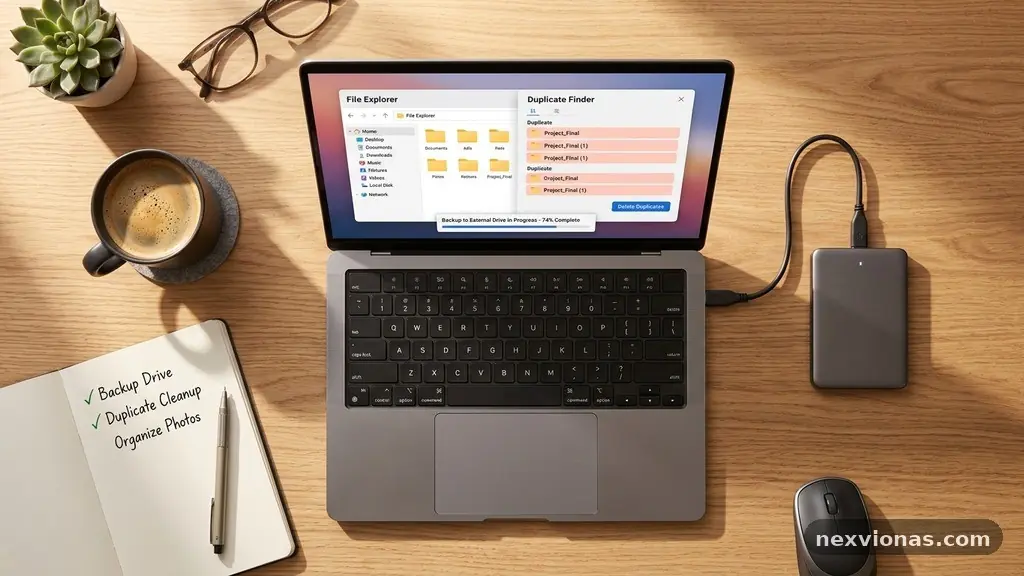
Reducing Duplicate Files Before Creating a Full Device Backup can free substantial storage, shorten transfer times, and make the final archive easier to restore. A careful cleanup also prevents several copies of the same photo, video, or document from being preserved under slightly different names. The safest approach is to scan first, compare file content rather than filenames alone, and delete only confirmed duplicates.
Start with a duplicate file finder, review its matches manually, and keep one clearly chosen original in a known folder. You’ll gain more than extra space: a cleaner file structure, fewer confusing search results, and greater confidence that your full device backup reflects the data you actually need.
Start With a Safe Duplicate-File Workflow
The direct answer is simple: identify duplicate groups, confirm that the files are genuinely identical, remove surplus copies, empty the recycle or trash folder, and then run the full device backup. Do this in stages rather than selecting every result and pressing Delete. A duplicate may sit in a temporary folder, a synced location, or an application library where removing it could have consequences.
Before scanning, create a temporary folder on an external hard drive or another storage location with enough room for files you may need to quarantine. Moving uncertain items there is safer than permanently deleting them, especially if the files have similar names but different edits. Keep the quarantine folder until you have completed the backup and opened several restored files successfully.
A practical sequence looks like this:
- Back up irreplaceable files before beginning the cleanup.
- Pause cloud synchronization if deleting local files could trigger deletion on other devices.
- Scan one storage area at a time, such as Pictures, Downloads, or a project folder.
- Group likely duplicates by content, file size, and location.
- Retain the copy with the clearest path, newest confirmed edit, or most useful metadata.
- Quarantine uncertain files instead of permanently removing them.
- Empty the recycle or trash folder only after checking the backup.
The order matters because duplicate removal can create new problems if synchronization is active. A cloud service may interpret a local deletion as an instruction to remove the same item from the online library. If you use cloud storage for protection, check its version history and deleted-item recovery before changing folders that are being synchronized.
It’s also sensible to record what you changed. A short note such as “removed repeated Downloads copies, retained Pictures originals, quarantined 12 uncertain videos” gives you a reference if a file seems to disappear later. This small habit turns cleanup into a controlled process rather than an irreversible hunt through thousands of files.
Find Where Duplicate Data Is Accumulating
Duplicate files rarely appear in only one place. Phones and cameras may import the same images into several dated folders, while messaging apps save received photos separately from the camera roll. Computers also collect repeated attachments in Downloads, exported documents in Desktop, and copied project folders on external drives.
Begin by listing the major storage locations instead of scanning the entire device immediately. Common sources include the internal drive, removable media, cloud-synced folders, application libraries, and old backup folders. This map helps you understand whether two files are genuinely redundant or whether one copy belongs to an active workflow.
Pay particular attention to these areas:
- Downloads: installers, email attachments, PDFs, and repeated exports often accumulate here.
- Pictures and videos: phone imports, edited versions, screenshots, and social-media downloads can overlap.
- Desktop: temporary working copies may remain after the finished file has been moved elsewhere.
- Cloud-synced folders: conflict copies may include words such as “conflicted,” “duplicate,” or a device name.
- External drives: older manual copies can duplicate the active library without being obvious from the computer’s main folders.
- Application folders: editing software may store originals, previews, exports, or project packages separately.
On Windows, Windows File Explorer can help with broad sorting by name, type, size, and date modified. On a Mac, macOS Finder offers comparable views and sorting controls, including searches that narrow results by file type or location. These built-in tools are useful for an initial inspection, although they may not identify two files with different names but identical content.
Location provides important context. A document in an active project folder may be the working master, while an identical copy in Downloads may be disposable. Likewise, a photo inside a catalog managed by editing software may be connected to edits, ratings, or metadata that you don’t want to disrupt without checking the application first.
Don’t assume that every similarly named file is a duplicate. Files called “report-final,” “report-final-2,” and “report-final-review” may contain different revisions, even if their sizes are close. The goal of file deduplication is not to minimise the item count at any cost; it is to remove redundant content while preserving meaningful versions.
Use Content, Not Names, to Confirm Matches
Filename comparison is a useful first filter, but it is not proof. Devices routinely rename imported files, add numbers to copied items, or preserve the same name in different folders. Two files with different names can be byte-for-byte identical, while two files with nearly identical names may contain different edits.
A reliable duplicate file finder usually combines several tests. File size matching quickly eliminates many non-matches, then cryptographic hashes can compare the content of files without requiring you to open every item. If two files have the same size and the same suitable hash, they are very likely identical at the byte level.
| Comparison method | What it reveals | Best use | Important limitation |
|---|---|---|---|
| Filename comparison | Similar names or renamed copies | Fast initial sorting | Different names can hide identical files |
| File size matching | Files with equal byte counts | Narrowing a large search | Different content can share a size |
| Cryptographic hashes | Whether file content matches | Confirming exact duplicates | Does not explain which copy has better metadata or location |
| Visual comparison | Whether photos or videos look alike | Finding resized or edited media | Similar-looking files may not be technically identical |
| Content-based comparison | Near-duplicates with changes | Reviewing resized images or converted documents | Requires human judgment before deletion |
Hash matching should still be interpreted carefully. A cryptographic hash is a compact fingerprint of file data, but it does not tell you whether the copy is the one with the desired filename, creation date, folder path, or embedded metadata. That decision requires context beyond the hash result.
Checksum verification is especially valuable after moving files to quarantine or an external drive. If the tool you use supports checksums, compare the file before and after transfer so you know the move did not corrupt the data. This matters most for large videos, disk images, archives, and documents that would be difficult to recreate.
Near-duplicate detection is a separate task. A resized photograph, a colour-corrected image, and the original may show the same scene but occupy different files. Treat these as review candidates rather than automatic duplicates, because the edited version may be the one you want to preserve for printing, publishing, or personal history.
Review Photos, Videos, and Documents Differently
Duplicate photos often arise during phone imports. A camera application may preserve the original image, a photo manager may create an edited copy, and a messaging application may save a compressed version of the same picture. Before removing anything, inspect resolution, file type, capture date, editing history, and whether the file is referenced by a photo library.
For photographs, the highest-resolution original is not always the best file to keep if it lacks edits or captions that exist in another copy. Compare the images visually and inspect metadata where possible. If one version is an edited JPEG and another is a RAW file, they are related but not interchangeable, so both may deserve a place in the backup.
Duplicate videos require extra patience because their file sizes make previews slow and their names often change during export. Compare duration, resolution, frame rate, audio tracks, and visible edits. A short social-media version is not redundant merely because it came from the same recording as a longer master file.
Documents have their own traps. Office files can carry comments, tracked changes, embedded images, or revision histories that aren’t obvious from a quick glance. Open representative files from a suspected group and check the last meaningful edit before deciding which copy is disposable.
Compressed archives deserve special treatment. Two ZIP files may contain similar folders but different internal revisions, timestamps, or encryption settings. Don’t delete one solely because the archive names look alike; compare the contents or retain both until the relevant project has been restored and checked.
Use a review label for ambiguous media. For example, folders named “keep-original,” “review-video,” and “quarantine-before-backup” make decisions visible. This is slower than an automatic cleanup, but it protects memories and work that cannot be replaced.
Clean Cloud Storage Without Losing Local Files
Cloud storage cleanup can reduce the size of a device backup, but it introduces a synchronization risk. A file removed from a synced folder may disappear from the cloud and every connected computer, depending on the service’s settings. Read the service’s deletion and recovery behaviour before making changes.
First determine whether the cloud folder is a true mirror, an online-only library, or a backup destination. These models behave differently. A mirrored folder may keep identical data locally and online, while an online-only system may show placeholders that do not contain the full file on the computer.
Pause syncing while reviewing uncertain items. Then move potential duplicates into a local quarantine folder outside the synchronized directory. After confirming that important files remain available, you can decide whether to remove the cloud copy, the local copy, or neither.
Cloud services often provide a deleted-items area and file version history. Those features are useful safety nets, but they aren’t substitutes for an independent backup because retention periods and recovery options vary. For broader backup planning, the CISA advice on backing up your data explains why separate, recoverable copies matter.
Storage optimisation features can also create confusion. An operating system may show a small placeholder for a cloud file even though the full version exists online, making size-based decisions misleading. Before deleting anything, confirm whether you’re examining the complete local file or only a reference to it.
After cloud cleanup, let synchronization finish and check the service’s web interface. Open several retained files from the cloud, not just from the computer. This confirms that the intended copy still exists online before you begin the full device backup.
Delete Conservatively and Verify the Result
The safest deletion rule is to remove only files that meet two conditions: their content is confirmed as redundant, and you can identify the copy you intend to retain. A duplicate file finder may highlight a group, but it cannot always know which path is part of an application’s required library or which file carries the metadata you value.
Prefer moving files to quarantine over permanent deletion. Give the folder a clear date and purpose, such as “Duplicate Review March 2025,” then leave it untouched while you complete the backup. If the backup restores correctly and no application reports missing media, you can remove the quarantine folder later.
Keep a record of representative decisions. Note why you retained a file, such as “highest resolution,” “active project path,” or “contains final captions.” This is particularly helpful when cleaning a shared computer where another person may recognise a filename but not know why its location matters.
After removal, check the storage summary again. The available space may not increase until you empty the recycle or trash folder, but don’t do that immediately if you are still reviewing results. Deleted files can provide a valuable recovery option during the first stage of the process.
Run spot checks before starting the backup:
- Open several retained photographs at full resolution.
- Play the beginning, middle, and end of a few retained videos.
- Open documents from active projects and inspect comments or tracked changes.
- Confirm that cloud files are still available through the service’s web interface.
- Check that applications still display their libraries and project assets.
- Review the quarantine folder for items that were selected too quickly.
Checksum verification can add confidence after a large file transfer. If a file moved from an internal drive to an external hard drive, matching checksums indicate that the data itself remained unchanged. Keep in mind that a checksum does not guarantee the file opens correctly in its application, so visual and functional checks still have value.
Finally, scan the backup destination after the process finishes. Confirm that the expected folders exist, the backup size is plausible, and the software reports success rather than merely completion of a copy queue. A backup that finishes quickly because important folders were excluded is not a successful backup.
Choose the Right Backup Type After Cleanup
Duplicate removal works best when paired with a clear backup plan. A full device backup captures the operating system, applications, settings, user files, and other selected data in one broad operation. It can be large, but it provides a useful baseline for replacing a failed drive or restoring a device.
An incremental backup works differently. After the first full backup, it saves only files changed since the relevant earlier backup, which can reduce daily transfer time and storage use. Cleaning duplicates before the initial full copy makes that baseline smaller and prevents redundant content from flowing into every later backup set.
Don’t treat a cleaned device as a reason to keep only one backup. A second copy on a disconnected external hard drive protects against certain cloud-account failures, synchronisation mistakes, and ransomware events. Store the drive safely and connect it only when needed for backup or verification.
A practical arrangement may include:
- A cleaned working device with clearly organised folders.
- A full device backup created after duplicate review.
- Incremental backups scheduled afterward.
- A separate external copy for files that would be difficult to replace.
- A cloud copy for convenient access and off-site protection.
Test restoration, not just backup creation. Restore a few photographs, one video, and a current document to a temporary location, then open them. If your backup software supports a full recovery test, schedule one at a time when the device can be safely examined rather than waiting for an emergency.
Review the backup after major reorganisations. Duplicate files often return when phones are replaced, shared folders are copied, or old drives are connected. A short quarterly scan of Downloads, photo imports, and project exports usually creates less disruption than a large cleanup immediately before a storage upgrade.
Keep your retention rules realistic. Some files should exist in several versions because their history matters, while disposable installers and repeated downloads do not. The purpose of reducing duplicate files before creating a full device backup is to remove waste, not to erase the evidence of how important work developed.
FAQ About Duplicate Cleanup Before Backup
Can I delete files with the same name?
No. Identical names do not prove identical content, and files in different folders may be separate revisions. Compare file size and content, then inspect dates, metadata, and the folder’s role before selecting a copy for removal.
Is a duplicate file finder safe to use?
It can be safe when used as a review tool rather than an automatic deletion system. Choose software that shows full paths, file sizes, comparison methods, and preview information, and quarantine uncertain results before permanent removal.
Should I remove duplicates from cloud storage first?
Usually, start with a local review and pause synchronisation before moving uncertain files. Removing a file from a synced folder may remove it elsewhere, so confirm the service’s recovery options and verify retained files through its web interface.
Does a full device backup need every duplicate?
It should preserve every unique file and meaningful version, but it doesn’t need multiple byte-for-byte copies of the same content. Keep duplicate versions when they contain different edits, metadata, project links, or historical value.
How often should I repeat this cleanup?
A light review every few months is practical for most devices, with an additional scan before a major full backup or drive migration. Focus on folders that grow quickly, such as Downloads, photo imports, messaging attachments, and exported video files.
Finish With a Cleaner, More Trustworthy Backup
Reducing Duplicate Files Before Creating a Full Device Backup is safest when you compare content, preserve meaningful versions, and quarantine anything uncertain. Start with the most crowded folders, use hashes and previews to confirm matches, and verify important files after moving them.
Once the cleanup is complete, create the full backup, test a few restorations, and continue with incremental copies. A little care before the first transfer gives you a smaller archive and much greater confidence that the files you need will still be there.