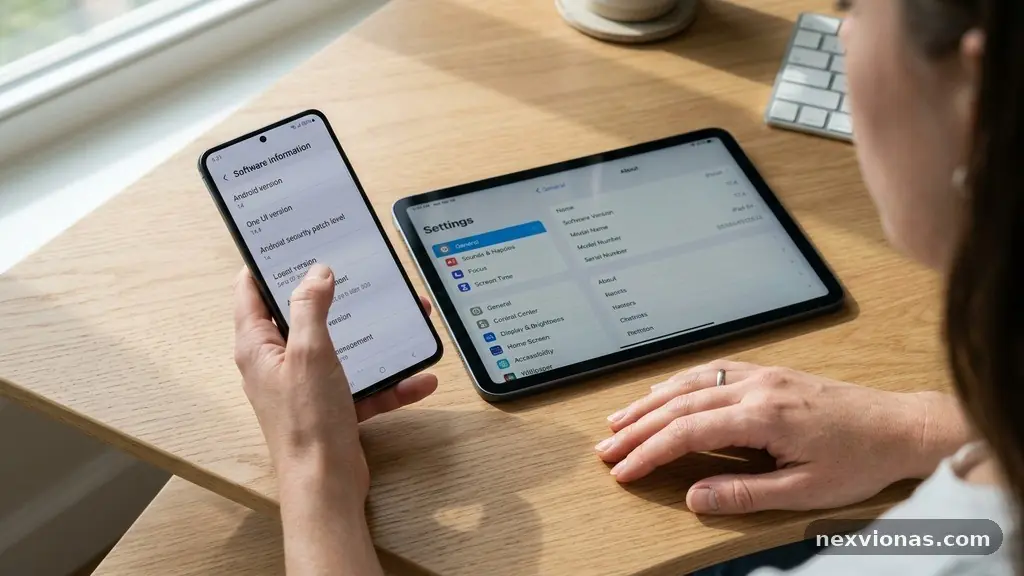
Checking whether an app is compatible with your current system version can prevent failed installations, crashes, missing features, and wasted money. The answer usually comes from three places: the app’s store listing, the developer’s system requirements, and your device’s own software and hardware details.
Before downloading, compare the required operating system version, device compatibility notes, app version, CPU architecture, and available storage with your phone or computer. A few careful checks can tell you whether the app should install, whether it will run properly, and whether an update is likely to solve a problem.
Start With the App’s Minimum Requirements
The quickest answer is usually listed on the app’s official store page. Look for wording such as “requires Android 10 or later,” “requires iOS 16.0 or later,” “Windows 10 version 1909 or newer,” or “macOS 12 Monterey and later.” The word minimum matters: it describes the oldest supported environment, not necessarily the version that provides the best experience.
On a phone, open the Google Play Store or Apple App Store and search for the exact app name. On a Windows computer, check the Microsoft Store listing, while Mac users should review the Mac App Store page or the developer’s official requirements page if the app is distributed elsewhere.
Pay attention to the difference between an app being unavailable and an app being incompatible. A listing may be hidden because of regional restrictions, licensing, age ratings, or device policies rather than because your operating system version is too old.
Check the developer’s notes as well as the store’s automatic compatibility message. Store data can lag behind a newly released operating system, and a developer may identify limitations that the store page does not show, such as support for only certain tablets, Macs with Apple silicon, or phones with a particular Android API level.
A practical first check involves these details:
- Required operating system: Compare the minimum Android, iOS, Windows, or macOS release with the version installed on your device.
- Supported devices: Look for model exclusions, tablet-only or phone-only restrictions, and processor requirements.
- App version: Confirm that the release you plan to install is still supported by the developer.
- Hardware requirements: Check memory, graphics support, storage, camera features, sensors, or other physical components.
- Update status: Read recent release notes for changes affecting older operating systems or discontinued devices.
If the store says the app “won’t work on your device,” don’t assume the problem is simply a missing update. The restriction may involve CPU architecture, screen size, hardware security, a required camera capability, or a developer decision to stop supporting a particular model.
Find Your Current System Version
You cannot make a reliable comparison until you know the exact software version running on your device. A broad label such as “Android phone” or “Mac laptop” isn’t enough because two devices from the same product family may use different operating system versions and processors.
Phones and tablets
On Android, open Settings and look for About phone or About tablet, then select Android version or Software information. Record the Android release, security update level, device model, and, if shown, the Android API level. The API level is an internal platform identifier that developers use to define which operating system features an app can call.
On an iPhone or iPad, open Settings, choose General, and tap About. The Software Version field shows the installed iOS version or iPadOS version. The model name is also useful because some applications require a newer device generation even when the operating system appears current.
Do not confuse the operating system version with the app version. “iOS 17.4” describes the software on the device, while “app version 8.2” describes the application installed from the Apple App Store.
Windows and Mac computers
In Windows, open Settings, select System, and choose About. You’ll see the Windows edition, version, build number, installed RAM, processor, and system type. The build number can matter because an app may support Windows 11 generally but require a specific update or security component.
On macOS, open the Apple menu and choose About This Mac. The window identifies the macOS version, Mac model, memory, and processor family. Newer Macs may show Apple silicon, while older systems may identify an Intel processor; that distinction can directly affect app availability.
Write these details down before comparing them with the listing. A simple record might say “Android 13, Pixel 6, 128 GB storage,” “iOS 16.7, iPhone 11,” or “macOS 13.6, Apple silicon.” Specific information prevents mistakes based on an approximate device description.
Read Store Listings Without Misreading Them
App stores provide useful compatibility signals, but each platform presents the information differently. A green install button generally means the store believes your device meets its published rules, while a message saying that the app requires a newer operating system points to a clear version mismatch.
Google Play may show “This app won’t work for your device” or prevent installation when the developer has excluded your model. Those decisions can be based on Android API level, screen density, processor architecture, country availability, or a hardware feature such as NFC. A compatible Android version alone does not guarantee eligibility.
The Apple App Store often lists a requirement such as “Requires iOS 16.0 or later.” It may also identify separate requirements for iPhone, iPad, Apple Watch, or Apple TV. Check the compatibility section rather than relying only on the app description, because marketing text may mention features without stating the minimum software release.
The Microsoft Store can display the supported Windows version and device type. Desktop applications may also have requirements that are absent from the short listing, including a 64-bit processor, a graphics driver, Microsoft runtime components, or a minimum screen resolution.
Store reviews can reveal practical problems, but they are not a substitute for official requirements. A review from 2021 may describe an issue fixed long ago, while a recent review may refer to a temporary outage rather than incompatibility.
| Platform | Where to check | Details that commonly matter |
|---|---|---|
| Android | Google Play Store and developer page | Android version, API level, device model, CPU architecture, hardware features |
| iPhone or iPad | Apple App Store and app support notes | iOS or iPadOS version, device generation, storage, accessory support |
| Windows | Microsoft Store or publisher website | Windows version, 32-bit or 64-bit support, RAM, graphics, processor |
| Mac | Mac App Store or developer requirements | macOS version, Intel or Apple silicon, memory, graphics, supported model |
When the listing offers an “install” option, treat that as a helpful indication, not a promise of perfect performance. An app can install successfully and still run slowly, lack a major feature, or fail after a future update.
Check Hardware and Processor Compatibility
System requirements cover more than software. A current operating system may be installed on a device that still lacks the processor, graphics capability, memory, camera, GPS chip, or secure-enclave feature an app needs.
CPU architecture is one of the less visible causes of incompatibility. Modern Android devices commonly use ARM-based processors, while Windows software may be built for x86 or x64 systems, and Mac software may target Intel, Apple silicon, or both. An app designed for one architecture may need translation technology or may not support another architecture at all.
Check whether the listing specifies 32-bit and 64-bit support. Many current operating systems have reduced or removed support for older 32-bit applications, especially on mobile platforms. A computer can have a 64-bit processor but still run a 32-bit operating system, so inspect the system information rather than guessing from the device’s age.
Memory and storage also deserve separate checks. An app might require 8 GB of RAM to work comfortably even if it technically launches with less, and a large game may need several gigabytes of free storage for installation, downloaded assets, and temporary update files.
Graphics requirements are especially important for games, video editors, design programs, and three-dimensional tools. Look for a supported graphics processing unit, DirectX feature level on Windows, Metal support on Apple devices, or a stated requirement for dedicated video memory.
Some applications depend on physical components rather than raw performance. A banking app may require biometric authentication, a navigation app may need GPS, and an augmented-reality app may require a supported camera and motion sensors. If the hardware is absent, changing the operating system version will not fix the limitation.
Compare Requirements With Your Device
Once you have the app’s requirements and your own system details, compare them line by line. Start with the minimum operating system version, then check the processor architecture, memory, storage, graphics, and required hardware features.
A simple comparison can produce three different outcomes. If every listed requirement is met, the app is likely compatible; if one requirement is clearly missing, installation or operation may fail; if a requirement is not stated, compatibility remains uncertain and should be confirmed with the developer.
Minimum versus recommended requirements
Minimum requirements usually mean the app can install and perform basic tasks. They don’t promise fast loading, high-quality graphics, support for every feature, or smooth multitasking.
Recommended requirements describe a more comfortable experience. For example, a game may launch on a device with 4 GB of RAM but recommend 8 GB, while a video editor may open on integrated graphics yet require a stronger GPU for high-resolution previews.
Look at the requirements in context. A note-taking app with an older minimum iOS version may work well on modest hardware, while an online game can remain demanding even after the system software is updated.
Version numbers and release branches
Version numbers can be confusing because platforms use different naming systems. Android 14, iOS 17, Windows 11, and macOS Sonoma identify operating system releases, but Windows also uses build numbers and Apple apps may mention a separate framework requirement.
Read qualifiers such as “or later,” “service pack,” “build,” and “edition.” Windows Home and Windows Pro may share basic compatibility, while Windows on ARM can require a separate application build from standard x64 Windows. On Mac, an app may support macOS 13 or later but exclude specific Intel models.
If your version is just below the minimum, updating may solve the issue. If the difference is several major releases, first confirm that your device can receive the update and that the application still supports your hardware after the upgrade.
Use Updates and Compatibility Tools Carefully
Updating the operating system is often the cleanest solution, but it should not be the automatic first move. Check the device’s available storage, battery level, backup status, and hardware support before beginning a major update.
On Android and iOS, install system updates through the device’s built-in settings rather than downloading unofficial packages. On Windows and macOS, use the operating system’s update panel or the manufacturer’s official software channel. Unofficial installers can introduce malware and may leave the system in an unsupported state.
After an update, restart the device and check the app again. Some compatibility checks do not refresh until the store application, device, or account session has been restarted.
Windows users may encounter compatibility mode, which can adjust how an older desktop program runs. It can help with legacy software that expects an older Windows environment, but it cannot create missing hardware, add unsupported processor instructions, or make a 32-bit-only application work on a platform that blocks it.
Virtual machines and translation layers can sometimes run software built for another system or architecture. They also add memory, storage, driver, and performance demands, so they are better suited to deliberate technical setups than to a quick fix for a mobile app.
Do not install modified packages simply because a website claims they remove a compatibility restriction. Sideloaded applications may bypass the store’s safety checks, lack automatic updates, and expose passwords or personal data to an unknown publisher.
Troubleshoot an App That Should Be Compatible
If the requirements match but the app still fails, determine whether the issue is compatibility or a separate installation problem. A full drive, damaged download, disabled store service, outdated driver, incorrect date and time, or account restriction can produce similar symptoms.
Begin by confirming that the app came from the official store or the developer’s verified distribution channel. Then restart the device, install pending app updates, and check whether other users are reporting a current outage. One crashing app does not automatically indicate that the operating system is unsupported.
On Android, clearing the Play Store cache or restarting Google Play services can sometimes refresh a stale compatibility result. On iPhone and iPad, deleting and reinstalling the app may correct a damaged installation, although you should verify that important local data is backed up first.
On Windows, check the app’s event logs, graphics driver, runtime dependencies, and permissions. A desktop program may require a current Visual C++ runtime, .NET component, or graphics driver even when the store lists only a Windows version.
On macOS, review the app’s privacy permissions and processor support. An Intel-only application may run through Apple’s Rosetta translation environment on supported Apple silicon Macs, but the developer’s notes should confirm whether that setup is supported.
Contact the developer when the evidence is mixed. Include the device model, operating system version, app version, exact error message, installation source, and steps that reproduce the problem; “it doesn’t work” gives support staff very little to investigate.
Recheck Compatibility Before Major Changes
Compatibility is not permanent. An app update can raise the minimum operating system version, remove support for an older device, or introduce a new processor requirement. A device that worked last year may therefore stop receiving app updates even though its current installation still opens.
Before buying a new device or upgrading its operating system, check both directions of compatibility. The new system should support the apps you rely on, while the apps should support the new hardware architecture and security model.
Keep a short record of critical applications and their requirements. Include work tools, password managers, accessibility software, banking apps, printers, games, and any program that does not have an easy replacement.
Pay special attention to business and creative software. A major macOS version can affect audio plug-ins, printer drivers, fonts, and older professional applications, while a Windows feature update may affect specialized drivers or enterprise security tools.
For important data, maintain a backup before an operating system upgrade. Compatibility checks reduce risk, but they cannot predict every interaction between an app, a driver, a cloud account, and a particular device configuration.
The safest habit is simple: check the current requirements immediately before installation, read the latest release notes, and verify that your device can return to its previous state if a major update causes trouble.
Frequently Asked Questions
How do I know whether my operating system is too old?
Find the exact operating system version in your device settings, then compare it with the app’s minimum requirement. If the app requires Android 12 and your phone runs Android 11, the system is below the supported minimum unless the developer lists an exception.
Why is an app incompatible when my phone seems new enough?
Compatibility can depend on more than age. The developer may exclude your model because of CPU architecture, missing sensors, graphics limitations, regional certification, screen support, or a requirement for a particular Android API level.
Can updating the operating system make an incompatible app work?
It can if the only missing requirement is the operating system version and your device supports the update. It won’t solve a missing hardware feature, unsupported processor architecture, insufficient memory, or a developer decision to exclude your model.
What does 64-bit support mean for app compatibility?
It describes how software is built to use the processor and operating system. An app may require a 64-bit operating system or processor, and an older 32-bit application may not run on a platform that has discontinued 32-bit support.
Is an app safe to install if a third-party website offers a compatible version?
Not necessarily. A third-party package may be modified, outdated, infected, or unable to receive verified updates, so use the official Google Play Store, Apple App Store, Microsoft Store, or the developer’s trusted website whenever possible.
Make the Check Before You Install
Checking whether an app is compatible with your current system version means comparing more than one number. Confirm the operating system, app version, device model, CPU architecture, memory, storage, graphics, and required hardware before assuming that an install button guarantees success.
Use official store information, verify your device details, and treat unclear requirements as a reason to ask the developer rather than take a risky shortcut. With that habit, checking whether an app is compatible with your current system version becomes a quick, practical step that protects your time, data, and device.