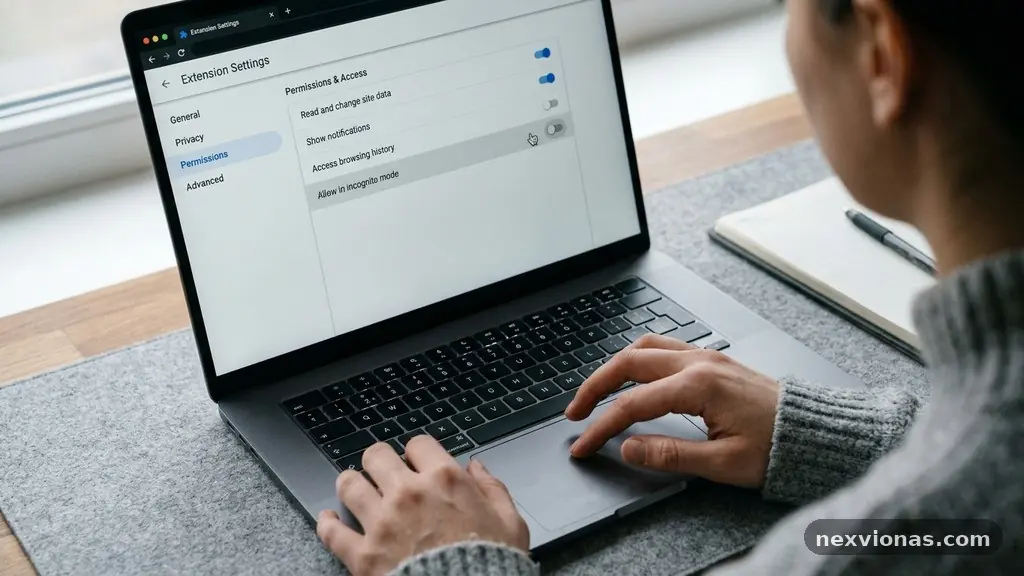
Checking Whether a Browser Extension Still Needs Its Permissions is a practical privacy habit, not a task reserved for security experts. An extension may have started as a simple tool for saving recipes, managing tabs, or checking grammar, then gained broader access through an update or a feature you no longer use.
A careful review can show which browser extension permissions are essential, excessive, or no longer justified. You’ll learn where to inspect access, how to compare permissions with an extension’s real features, and what to do when the explanation doesn’t add up.
Start With the Permission and the Feature
The quickest answer is this: an extension still needs a permission only if a current feature cannot work without that access. If a coupon extension needs to read shopping pages to detect offers, its access to those pages may be reasonable; if a calculator extension requests access to every website, the justification is much weaker.
Begin by listing what the extension actually does today. Ignore its original description for a moment and test the features you use, such as inserting text, changing page colours, blocking scripts, saving a page, or synchronising settings.
Then compare those actions with the permission wording shown by your browser. Access to “all websites” is materially broader than access to one named site, while an activeTab permission usually grants temporary access after you click the extension rather than continuous access to every page.
Some permissions are easy to connect to visible features. A password manager needs to interact with login forms, a PDF tool may need to handle PDF files, and a tab organiser may need access to tabs or browsing data. Others deserve closer inspection, particularly permissions involving browsing history, downloads, clipboard content, or all websites.
Write down any mismatch instead of dismissing it. The key question in a permission audit is not whether an extension can technically request access, but whether the access is necessary for the functions you still use.
What Browser Permissions Actually Allow
Permission language can sound alarming because browsers describe capabilities in broad terms. “Read and change all your data on the websites you visit” may mean the extension uses content scripts to add a button or inspect a page, but it can also represent a very powerful level of access.
Host permissions identify the sites or URL patterns an extension may access. A pattern covering one domain, such as a company’s internal helpdesk, is narrower than a pattern covering every HTTPS website.
Content scripts run inside web pages and can read page content that the browser exposes to them. Depending on how they are written, they may also modify the page, place interface elements on it, or send selected information to the extension’s other components.
A background script, or a background service worker in many Manifest V3 extensions, performs work behind the page. It can coordinate settings, respond to browser events, communicate with content scripts, and call external services if the extension is designed to do so.
Some access is temporary. The activeTab permission commonly gives an extension temporary access to the active tab after a user action, which can be a safer design than permanent access to every site.
Other permissions concern browser functions rather than page text. They may cover tabs, bookmarks, downloads, notifications, storage, browsing history, proxy settings, or native applications. A tool that saves bookmarks might need bookmarks access, but that does not automatically explain a request to read browsing history.
Browser warnings are useful but deliberately broad. A warning describes what the permission could allow, not necessarily what the extension does with every piece of information, so pair the warning with the extension’s behaviour and privacy policy.
Build a Simple Permission Inventory
Before deciding whether access is excessive, create a small inventory. Record the extension’s name, publisher, version, installation date if available, current features, permissions, and the websites where you expect it to operate.
This prevents a common mistake: judging one alarming permission without considering the extension’s purpose. It also makes later changes easier to spot, especially if an update introduces a new warning or expands site access.
- Extension purpose: describe the job in one sentence, such as “adds quick replies to the support dashboard.”
- Features you use: list active functions separately from features you stopped using.
- Permission wording: copy the browser’s current description rather than relying on memory.
- Site access: note whether access applies to one site, selected sites, or all websites.
- Data involved: identify page text, account details, browsing history, downloads, or clipboard content that could be exposed.
- Publisher and update history: check whether the developer is known and whether the latest change altered the extension’s role.
Separate required access from convenience access. An extension might use broad access because it supports many optional sites, even though your own use is limited to one domain.
Also record whether a permission is granted at installation or requested later. Optional permissions are often a positive design choice because the extension can ask for extra access only when you activate a specific feature.
Chrome users can inspect listing details in the Chrome Web Store, including the developer’s stated practices and available support information. Firefox users can review an extension’s listing in Mozilla Add-ons, where permission explanations and developer details may help clarify its intended scope.
These listings are evidence, not proof. A polished description does not replace checking the actual settings and observing whether the extension works when access is reduced.
Compare Access With Real Use
Now test the extension feature by feature. Turn off or restrict one category of access, then try the task you care about in a safe, ordinary account or a non-sensitive page.
For example, suppose a translation extension has access to all websites, but you use it only on public articles. Restricting site access to selected sites may preserve your routine while reducing the number of pages the extension can inspect.
A screenshot tool offers another useful comparison. If it activates only after you click its toolbar icon, permanent reading access to every page may not be essential, particularly if the extension can work through the active tab instead.
Do not assume that a permission is unnecessary merely because the visible interface does not mention it. A tab manager may need tabs permission to list open pages, while an extension that changes page layout may need content scripts even if its only visible feature is a small toolbar switch.
Look for a narrow alternative before removing access entirely. The browser may offer options such as “on click,” “on specific sites,” or “on all sites,” allowing you to preserve the feature with a smaller exposure.
The table below shows how common permission types relate to typical uses. It is a starting point, not a verdict about any individual extension.
| Permission or access type | Reasonable example | Question to ask |
|---|---|---|
| Selected host permissions | A work tool operating on one company portal | Does it need every listed domain? |
| All website access | A reader mode or page-wide blocker | Can selected sites or on-click access work instead? |
| Tabs permission | A tab organiser showing titles and URLs | Does the extension need to inspect all open tabs? |
| Browsing history | A history search or automatic research assistant | Is history central to a feature you actively use? |
| Downloads permission | A file manager or download renamer | Does it manage files, or is this leftover access? |
| Clipboard access | A formatting or clipboard history tool | Does copying and processing text require it? |
If a feature breaks after restriction, note exactly what stopped working. That result tells you more than a vague concern because it connects the permission to a reproducible function.
Inspect Settings in Chrome and Firefox
In Chrome, open the extensions management page through the browser menu or by entering chrome://extensions in the address bar. Select an extension’s details, then review its site access, permissions, developer information, and available controls.
Chrome often lets you choose whether an extension runs on all sites, selected sites, or only after you click it. Choose the narrowest setting that supports your normal workflow, then test the extension before moving on.
Firefox provides similar controls through its add-ons manager. Open the extension’s details and look for permissions, site access, and the setting that controls where the extension can run.
The labels differ between browsers and versions, so focus on the capability rather than matching a particular phrase. “Access your data for websites” and “read and change data” both deserve the same practical question: which pages can the extension reach, and why?
Review extension settings as well as browser-level controls. An extension may have an internal switch for features such as telemetry, cloud synchronisation, automatic page scanning, or personalised recommendations.
Disable features you do not use, but do not treat an internal toggle as a complete security boundary. The browser’s site access controls determine where an extension may run, while the extension’s own settings determine how it uses the access it receives.
If the browser displays a new permission warning after an update, stop and read it before accepting. A new warning may reflect a genuine feature, a changed technical architecture, or a newly expanded request that deserves investigation.
Use Least Privilege as the Decision Rule
The security principle of least privilege provides a practical standard: grant only the access needed for a defined task, for only as long as that task requires it. You do not need to prove that an extension is malicious before reducing unnecessary access.
Start with the highest-impact permissions. Access to all websites, browsing history, passwords, clipboard data, downloads, and page content can expose sensitive information, so these categories deserve more attention than basic local storage or notification access.
Ask four questions for each permission:
- What exact feature depends on it?
- Which sites or data does it expose?
- Can the same feature work with on-click or selected-site access?
- What would happen if you denied it today?
A permission that supports a feature you use every day may be justified, even if it is broad. A permission attached to a feature you have never used should usually be restricted, removed, or treated as a reason to uninstall the extension.
Pay attention to the difference between technical necessity and developer convenience. It may be easier for an extension to request access to every site than to implement narrow, optional permissions, but convenience for the developer does not automatically justify exposure for you.
Manifest V3 has encouraged extensions to use more structured permission requests and service workers, but its presence is not a guarantee that an extension asks for only what it needs. The manifest version can provide context, not a final privacy rating.
When the explanation remains unclear, contact the publisher with a specific question. Ask why a named permission is required, which feature uses it, and whether selected-site or optional access is supported.
Check Changes After Updates
Permissions are not a one-time decision. An extension may begin with narrow access, then request more after a redesign, a new integration, or a shift toward synchronisation and online services.
Make update reviews part of your normal browser maintenance. You do not need to inspect every extension every day; checking after a permission warning, major version change, or change in ownership is usually more useful.
Compare the new request with the release explanation. If an extension adds a feature that reads pages on a new service, expanded host permissions may be understandable. If the release only fixes a button but the extension now asks for browsing history, the explanation should be much clearer.
Watch for changes in behaviour as well as labels. A tool that used to activate only when clicked may begin scanning pages automatically, or a local utility may start asking you to create an account and enable cloud processing.
Store your own short notes for extensions that handle sensitive work. Include the approved sites, the features you rely on, and the permissions you accepted, so a future review has a reference point.
Consider uninstalling extensions that have become abandoned, duplicated by the browser, or irrelevant to your routine. An extension that is disabled but still installed may remain an unnecessary source of future prompts or update-related changes.
For extensions connected to work accounts, apply a stricter standard. Corporate dashboards, customer records, financial tools, and internal documents contain information that should not be exposed to a broad page-reading extension without a clear business reason.
Know When to Remove an Extension
Restriction is not always enough. If an extension cannot perform its advertised job without unusually broad permissions, has no clear publisher information, or behaves differently from its description, removal may be the sensible choice.
Uninstalling an extension typically stops its browser integration, but check whether it created saved data, downloaded files, native helper software, or account connections. Follow the publisher’s removal instructions for any separate desktop component.
Before removal, export information you genuinely need. A tab manager may store a session, a notes tool may hold local entries, and an authenticator-related extension may require a carefully planned migration rather than a casual deletion.
After uninstalling, review browser settings for leftover site permissions, notification permissions, or search changes. Also check your operating system’s installed applications if the extension offered a companion program.
Reinstalling should not be the first response to a confusing permission request. Search for a better-known alternative, compare permission scopes in the relevant store, and check whether the browser already includes the function.
If you suspect harmful behaviour, preserve useful evidence before removing the extension. Save the extension name, publisher, version, warning text, and a screenshot of the permission request, then report it through the browser’s official store or support channel.
For technical reference, Chrome’s official documentation on declaring extension permissions explains how permissions, host access, and optional requests are defined. It is especially helpful when a developer’s description uses vague language.
Make Permission Reviews Easier
A permission audit becomes less tiring when you use a repeatable routine. Review extensions in small groups rather than waiting until a long list becomes overwhelming.
Start with extensions that can see sensitive pages. Password tools, shopping assistants, writing tools, productivity add-ons, and workplace utilities often operate directly inside pages where private information appears.
Next, remove duplicates. Two extensions that block advertisements, manage tabs, or alter page appearance can create overlapping access and confusing behaviour.
Keep a short “keep, restrict, remove” list. “Keep” means the permission matches a feature you use; “restrict” means a narrower site setting or optional permission is available; “remove” means the extension is unnecessary, unclear, or no longer maintained.
Test after every change. Open a normal page, activate the extension, and confirm that the expected function still works without exposing more sites than necessary.
Do not ignore usability. A permission setting that makes a tool unusable may lead you to grant broad access again without understanding why, so identify a workable middle option such as on-click access or a limited list of sites.
Families and shared computers benefit from the same approach. Keep extensions to a small, known set, review who installed them, and avoid allowing unknown add-ons to operate on banking, email, school, or work pages.
These habits turn privacy from a dramatic one-off cleanup into ordinary maintenance. The goal is not to eliminate every permission, but to keep each one connected to a purpose you can explain.
Frequently Asked Questions
Can an extension read every page if I never click its icon?
It may be able to if it has broad host permissions and content scripts that run automatically. Check site access and look for an “on click” option, but remember that an extension can also respond to background events without opening its visible popup.
Is all-website access always unsafe?
No. A page-wide blocker, reader mode, or accessibility tool may need broad access to deliver its central feature. The important test is whether the permission matches a feature you use and whether a narrower setting would work just as well.
What does optional permission mean?
Optional permission is access an extension requests only when a feature needs it, rather than demanding it during installation. This can reduce unnecessary exposure, although you should still read the request before approving it.
Does Manifest V3 make an extension trustworthy?
No. Manifest V3 changes parts of the extension architecture, including the use of service workers and permission patterns, but it does not prove that the developer has good privacy practices. Examine the requested access, publisher, behaviour, and update history.
Should I uninstall an extension that asks for more access after an update?
Not automatically. First identify the new feature and compare it with the explanation, then try restricting site access or declining optional permission. Remove the extension if the new access is unrelated, unexplained, or unnecessary for what you use.
Keep Permissions Tied to Purpose
Checking Whether a Browser Extension Still Needs Its Permissions works best as a practical comparison: match each permission to a feature, reduce site access where possible, and revisit the decision after significant updates. The safest setting is usually the narrowest one that still lets the extension do its job.
Start with your most sensitive extensions today, record what you find, and test one restriction at a time. If an extension cannot explain its access or no longer earns a place in your workflow, removing it is a reasonable choice.