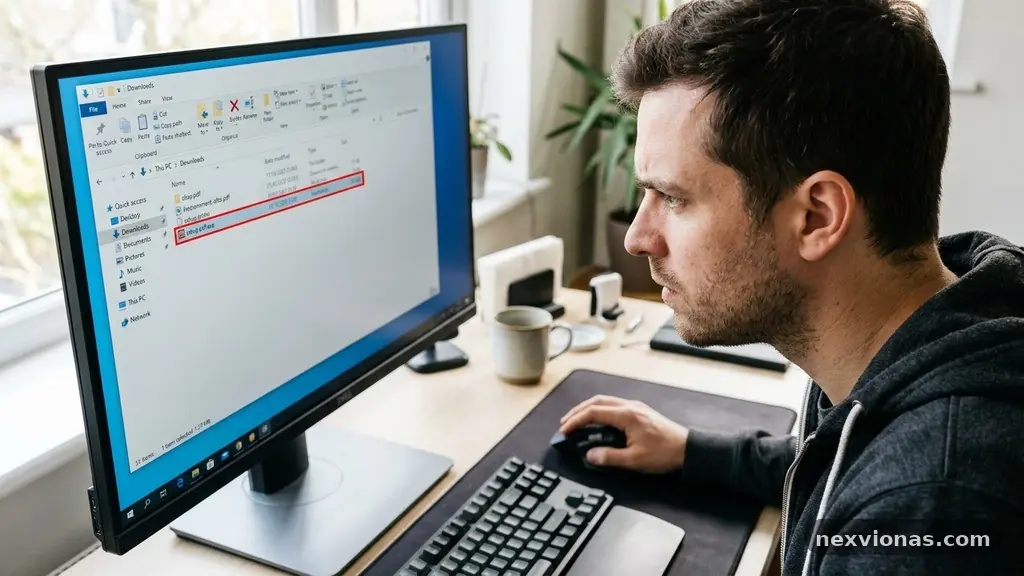
Verifying a Software Download Before Running the Installer is a small security habit that can prevent a corrupted file, counterfeit program, or malware infection from reaching your computer. A download that opens normally may still have been altered, replaced, or copied from an unofficial source.
The safest process combines source checking, HTTPS, file-integrity validation, digital-signature inspection, and a malware scan. You’ll learn how these checks fit together, which warning signs matter most, and what to do when a checksum or certificate doesn’t match.
Start With the Official Source
The first verification step happens before the file reaches your computer: confirm that you’re downloading from the software publisher’s real website. Search results can display advertisements, cloned pages, abandoned download portals, and lookalike domains that imitate a trusted brand.
Type the official vendor website into your browser when possible, or use a bookmark you created previously. Check the domain letter by letter, especially for substitutions such as “micros0ft” instead of “microsoft,” extra words, unusual country-code domains, or a hyphen inserted into a familiar name.
HTTPS is necessary, but it isn’t proof that a website is legitimate. It encrypts the connection and helps prevent interception while the file travels to you, yet a malicious website can also obtain an HTTPS certificate.
Look for download pages that identify the publisher, product version, supported operating systems, release notes, and a clear support or security contact. A page that offers several unrelated installers, aggressive pop-ups, or a “special cracked edition” deserves immediate suspicion.
Check the File and Version
Before clicking the download button, confirm that the filename and extension match the expected product. A Windows installer might end in .exe or .msi, while macOS software may arrive as .dmg or a signed package, but a file named “setup.pdf.exe” is a serious warning.
Operating systems can hide known file extensions, allowing a dangerous executable to appear like a document. Turn on visible file extensions in your file manager before judging what you downloaded.
Compare the version number with the publisher’s release page. If the vendor lists version 4.8.2 and your file is labelled 4.8.2.99 from an unknown mirror, that difference doesn’t automatically prove danger, but it warrants further checking.
- Confirm the domain name belongs to the software publisher.
- Check that the product name, version, architecture, and operating system are correct.
- Read the release date and notes for unusual discrepancies.
- Avoid installers distributed through pop-ups, unsolicited email, or random file-hosting pages.
- Keep the download page open so you can compare verification details later.
Use the Published SHA-256 Checksum
A SHA-256 checksum is one of the clearest ways to verify file integrity. It is produced by running the downloaded file through a cryptographic hash function, which creates a long string of letters and numbers tied to the file’s exact contents.
Even a one-character change in the installer should produce a different SHA-256 value. That makes the checksum useful for detecting an incomplete download, a damaged transfer, or a file that was modified after publication.
Find the checksum on the publisher’s official download page, release notes, or security documentation. Copy it carefully; the comparison must be exact, including every character and digit.
How to Compare a Hash
On Windows, open PowerShell and run a command like Get-FileHash “C:\Users\YourName\Downloads\installer.exe” -Algorithm SHA256. The resulting hash should match the SHA-256 value supplied by the software publisher.
On macOS or Linux, open Terminal and use shasum -a 256 /path/to/installer. Linux systems may also support sha256sum /path/to/installer, depending on the distribution and installed utilities.
Don’t compare only the first few characters. A partial match can create false confidence, particularly if someone has substituted a malicious file that shares a similar filename.
| Verification result | What it suggests | Recommended action |
|---|---|---|
| Exact SHA-256 match | The downloaded bytes match the published file | Continue with signature and malware checks |
| Hash differs by many characters | Wrong version, altered file, or failed download | Delete it and download again from the official source |
| No published checksum | The publisher may rely on signatures or another distribution system | Inspect the digital signature and source carefully |
| Checksum appears only on a random mirror | The reference itself may be unreliable | Use verification data from the publisher instead |
A matching checksum proves that your copy matches the file represented by that published hash. It does not, by itself, prove that the publisher’s server was uncompromised or that the software is free of unwanted features.
Inspect the Digital Signature
A digital signature ties a file to a publisher’s cryptographic identity. Unlike a checksum, which confirms that the bytes match a known reference, a signature can help show who signed the file and whether the file changed after signing.
On Windows, right-click an executable, choose Properties, and open the Digital Signatures tab. A valid signature should identify a recognisable signer, show that the signature is valid, and provide certificate details through a certificate authority.
Many Windows installers use Microsoft Authenticode. It allows software publishers to sign executable files and helps Windows display information about the signer, certificate status, and whether the file has been altered since signing.
What a Certificate Tells You
Check the signer name rather than assuming any valid certificate is safe. A malicious developer can sign malware under an unrelated company name, and a stolen or misused code-signing certificate can create additional risk.
Inspect the certificate chain and its validity dates. A certificate that has expired, been revoked, or belongs to a company unrelated to the product should stop the installation until you can confirm the reason.
Not every legitimate program uses a traditional signed installer. Open-source projects may distribute files with GPG or PGP signatures, especially on Linux and developer-focused platforms.
With a GPG signature, you generally verify the downloaded file against a detached signature file and the publisher’s public key. The difficult part is confirming that the public key really belongs to the developer, rather than trusting a key downloaded from an unverified location.
A signature is therefore strongest when its fingerprint appears through several trusted channels, such as the project’s official website, a well-known repository, and established release documentation. Never paste a private key into a website or send it to someone claiming to “verify” your download.
Scan the Installer Before Opening It
After checking the source and integrity data, scan the file with your installed security software. Make sure the antivirus product has current definitions, then use its custom-scan option on the specific installer rather than relying only on a scheduled scan.
A malware scan is useful, but it cannot provide certainty. New threats may not yet have signatures, some installers use obfuscation, and security tools can disagree about potentially unwanted programs.
For a second opinion, you can submit a suspicious file or its hash to VirusTotal. The service compares results from multiple security engines, but uploading confidential software, proprietary code, or private documents may expose information you should not share.
Read Detections Carefully
One detection among dozens of clean results can be a false positive, particularly for small utilities, password tools, administration software, or programs that modify system settings. Several independent detections with similar malware classifications deserve much more weight.
Research the exact detection name through the publisher’s support channels or a reputable security reference. Don’t disable your antivirus merely because an installer is popular or because an online forum says the warning is harmless.
Pay attention to the installer’s behaviour as well. An application that unexpectedly requests administrator access, tries to install a browser extension, changes your homepage, or contacts unfamiliar domains may be unsafe even if its file scan is clean.
- Scan the original installer before launching it.
- Check whether the security warning names a specific threat or only an uncommon file pattern.
- Compare multiple scan results instead of treating one score as absolute proof.
- Do not upload confidential or licensed files to public scanning services.
- Stop if the installer asks for permissions unrelated to its advertised purpose.
Test Unknown Software in Isolation
If the software is unfamiliar, newly released, or obtained from a source you cannot fully confirm, use a sandbox environment or virtual machine. Isolation limits the damage if the installer attempts to change system files, create persistence, or access local credentials.
Windows Sandbox can provide a temporary desktop on supported editions of Windows, while virtualisation tools can create a separate guest operating system. A disposable test environment is especially useful for utilities that require administrator privileges or interact with drivers.
Isolation works only when configured properly. A virtual machine with shared folders, clipboard access, mounted host drives, or unrestricted network access may still expose sensitive material to a malicious program.
What to Observe During a Test
Record the installer’s requested permissions and note which components it wants to add. Watch for unexpected services, scheduled tasks, startup entries, browser changes, firewall rules, or requests to turn off security controls.
Network monitoring can reveal connections to domains that have no obvious relationship to the software. A legitimate application may contact update servers, licensing systems, or analytics endpoints, but a random collection of unfamiliar destinations deserves investigation.
A sandbox is not a substitute for verifying the source. Sophisticated malware can detect virtual machines, delay harmful activity, or behave differently during analysis, so treat isolation as an additional layer rather than a guarantee.
Never open a suspicious installer on a computer that contains irreplaceable files, saved browser passwords, financial records, or access to business systems. The cost of creating a disposable test environment is usually lower than recovering from a compromised primary device.
Know the Warning Signs of a Fake Download
Fraudulent download pages often imitate familiar branding while pushing a modified installer. Their design may look polished, but the surrounding details reveal inconsistencies that a genuine publisher would be unlikely to make.
Be cautious if the page claims your computer is infected, offers a forced “urgent update,” starts a download without a clear click, or uses countdown timers to pressure you. Legitimate software vendors generally explain what is being installed and provide a way to verify the release.
Search advertisements deserve extra care because attackers can buy placement for domains that resemble official websites. A familiar logo at the top of a page is not evidence of ownership.
Common Red Flags
- The installer is hosted on a file-sharing site when the publisher offers a direct download.
- The page uses a misspelled brand name or a domain with an unusual suffix.
- The download is bundled with a “download manager” or unrelated browser extension.
- The publisher provides no version number, release notes, checksum, or support information.
- The file arrives in a password-protected archive without a clear reason.
- The installer demands that you disable antivirus protection before continuing.
- The digital signature belongs to a different company from the product’s publisher.
File extensions can be deceptive when multiple suffixes are hidden. A file called “invoice.pdf.exe” may appear as “invoice.pdf” if known extensions are concealed, so change that operating-system setting before examining downloads from email or messaging apps.
Unexpected urgency is another useful signal. If a page claims you must install an update within minutes or threatens immediate account closure, close the page and visit the organisation’s known official website separately.
Use a Repeatable Verification Workflow
Good security habits become easier when the process is consistent. Instead of making a fresh judgment every time, follow the same sequence for games, productivity tools, drivers, developer packages, and browser extensions.
Begin by recording where the file came from and when you downloaded it. If you later discover a vulnerability in a particular release, that information helps you identify affected machines and determine which version was installed.
- Visit the software publisher’s official vendor website.
- Confirm the product name, version, operating system, and architecture.
- Download through HTTPS and save the original file without renaming it.
- Compare the SHA-256 checksum if the publisher provides one.
- Inspect the digital signature, certificate chain, or GPG/PGP signature.
- Run a local malware scan and seek a second opinion for suspicious files.
- Test unfamiliar software in a sandbox environment when practical.
- Install with ordinary user privileges unless administrator access is clearly required.
Keep the installer until you’ve confirmed that the program works and that your security tools report no problem. Store it in a clearly named folder with the version number, rather than leaving multiple files called “setup.exe” in your Downloads directory.
For business systems, document the verification result in a ticket or software inventory. Record the source URL, version, checksum, signer, installation date, and person who approved the installation.
Organisations can strengthen this process by using application allowlisting, endpoint detection, central patch management, and least-privilege accounts. These controls reduce the chance that one mistaken click gives an untrusted program broad access.
What to Do When Verification Fails
Never install a file simply because you need the application urgently. A mismatched checksum, invalid signature, or unexpected security detection means you have an unresolved question, not a minor inconvenience.
Delete the file and empty the recycle bin if you obtained it from a suspicious source. Then download a fresh copy from the publisher’s official website and repeat the checks.
If the new download produces the same unexpected checksum, compare the publisher’s release notes and support announcements. The published hash may have changed after a release, the website may be serving different builds by region, or you may be checking the wrong architecture.
Contact the publisher through a verified support address rather than replying to an unsolicited message. Include the product version, operating system, error message, and checksum result, but do not send passwords, private keys, or sensitive files.
If you already ran a suspicious installer, disconnect the device from the network if safe to do so, preserve relevant evidence, and run a trusted offline security scan. Change important passwords from a separate clean device, especially if the affected computer stored browser sessions or authentication tokens.
For a work computer, report the incident to your security or IT team immediately. Fast reporting can allow administrators to isolate the device, review logs, revoke credentials, and warn other employees before the same file spreads.
FAQ: Download Verification Questions
Is HTTPS enough to trust an installer?
No. HTTPS protects the connection between your browser and the website, but it doesn’t prove that the website belongs to the real software publisher or that the installer is safe. Pair HTTPS with official-source checks, a SHA-256 comparison, a digital-signature review, and a malware scan.
What does a matching SHA-256 checksum prove?
It shows that your downloaded file has the same contents as the file represented by the publisher’s published hash. It confirms file integrity against that reference, but it doesn’t independently prove that the publisher’s account, website, or build process was never compromised.
Should I run an installer with an invalid digital signature?
Stop first. An invalid signature can result from file modification, certificate expiry, revocation, or a damaged download, so it needs an explanation from a trusted source. Do not bypass the warning merely because the filename looks familiar.
Can VirusTotal guarantee that a download is safe?
No. VirusTotal can provide useful opinions from multiple security engines, but a clean result does not guarantee that a new or carefully hidden threat is harmless. Also remember that uploading a file may disclose proprietary or confidential content.
Do open-source programs need digital signatures?
Not always. Many open-source projects use GPG or PGP signatures, reproducible-build information, checksums, trusted package repositories, or several of these methods instead of a commercial code-signing certificate. Verify the developer’s public-key fingerprint through a trusted channel before relying on the signature.
Make Verification a Normal Final Step
Verifying a Software Download Before Running the Installer doesn’t require advanced forensic skills. Start with the official publisher, compare the SHA-256 checksum, inspect the signer, scan the file, and isolate anything unfamiliar.
That short routine turns installation from a blind click into an informed decision. When a check fails, pause rather than taking a shortcut; a few extra minutes can protect your files, accounts, and the wider network around you.