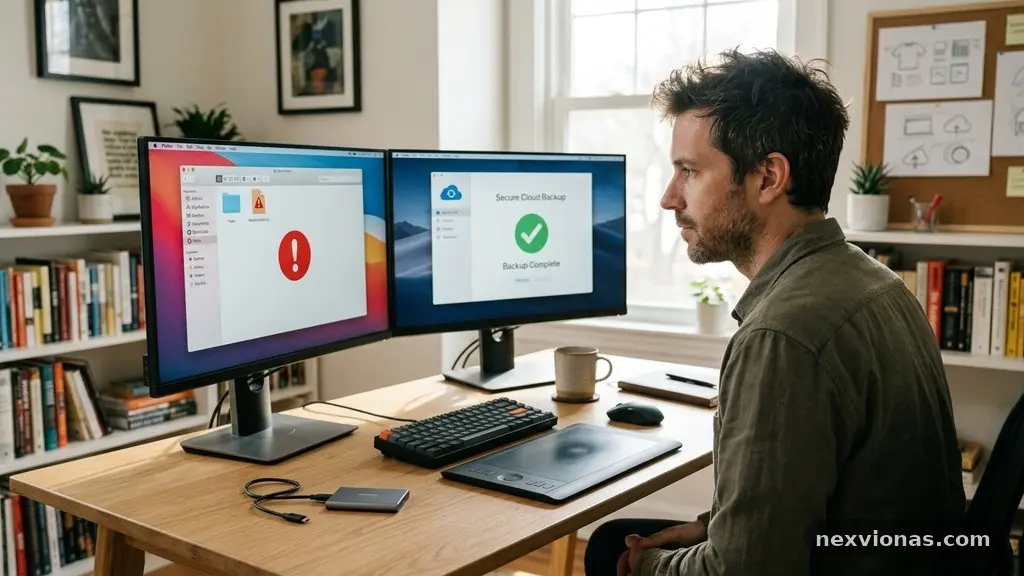
Choosing a Safe Location for Backing Up Important Digital Files starts with one simple principle: your backup should remain available when the original device, account, or building does not. The safest arrangement usually combines a trusted cloud backup with a separate physical copy, including at least one version kept offsite.
That approach protects family photographs, tax records, business documents, passwords, and creative work from more than a failed hard drive. You’ll see how to compare storage locations, judge security controls, use the 3-2-1 backup rule, and build a routine that proves your files can actually be restored.
The safest location is a combination, not one place
The direct answer is to keep important files in at least three copies, on two different types of storage, with one copy offsite. This is the familiar 3-2-1 backup rule, and it works because separate copies reduce the chance that one incident destroys everything at once.
For many households, a practical setup includes the working files on a computer, an encrypted external hard drive stored away from the computer, and a reputable cloud backup service. A small business might add a network-attached storage (NAS) device, provided it is configured securely and is not treated as the only backup.
Location matters in several ways. A USB drive beside your laptop may be protected from a laptop failure, but it can still be lost to theft, fire, flooding, malware, or accidental deletion affecting both devices at the same time.
An offsite backup solves the shared-location problem. “Offsite” could mean encrypted cloud storage, a drive kept at a trusted relative’s home, or a secure business location in another building, although the distance should be meaningful enough that one local disaster is unlikely to reach both copies.
The best choice also depends on how quickly you need recovery. A cloud service may restore selected files from anywhere with an internet connection, while a local external hard drive can be much faster for several hundred gigabytes of photographs or video.
Use risk, not convenience, as the deciding factor
Start by listing what could go wrong in your situation. Someone living in a flood-prone area may prioritise geographic redundancy, while a freelancer facing ransomware may care most about immutable backups and file versioning.
- Device failure: protect against a dead SSD, damaged laptop, or corrupted file system.
- Theft or loss: keep another copy away from the original equipment.
- Ransomware: use version history, offline storage, or a service with ransomware protection.
- Fire and flooding: choose a genuinely separate physical location.
- Account takeover: secure cloud access with multi-factor authentication (MFA).
- Privacy exposure: use encryption and review the provider’s data privacy and compliance practices.
A safe backup location is therefore not simply the cheapest drive or the most familiar app. It is the place, or combination of places, that addresses your most likely threats without making restoration so difficult that you abandon the routine.
Match storage types to the files you need to protect
Different storage locations solve different problems, so comparing them by purpose is more useful than declaring one universally best. Local storage provides speed and control, while cloud storage offers distance, automation, and access from another device.
| Storage location | Main strengths | Important limitations | Best use |
|---|---|---|---|
| External hard drive | Fast local restores, one-time purchase, large capacity | Can be stolen, damaged, disconnected, or infected | Secondary copy and large media libraries |
| Cloud backup | Offsite protection, automation, remote access | Subscription cost, internet dependence, provider risk | Continuous protection for changing files |
| Network-attached storage (NAS) | Centralised household or office storage, fast local access | Needs careful configuration and can be affected by local disasters | Shared files and frequent local backups |
| Offline removable media | Disconnected from malware and accidental synchronisation | Requires manual rotation, labelling, and safe storage | Longer-term or high-value archival copies |
An external hard drive is often the easiest first step because it can hold an entire computer image or a large collection of videos without monthly fees. It should be disconnected after a backup finishes, since a drive permanently attached to a compromised computer may be encrypted along with the original files.
A NAS can be useful for a family with several computers or a small organisation that needs a shared repository. RAID may help a NAS continue operating after one disk fails, but RAID is not a backup; deletion, ransomware, theft, and fire can still affect the whole enclosure.
Cloud backup is strongest when it runs automatically and retains older file versions. A simple synchronisation folder is not always the same as a true backup, because a deletion or corruption may synchronise to every connected device unless the service offers recovery history.
Portable flash drives are convenient for transferring documents, but they are usually a weak sole archive. They are easy to misplace, vary in quality, and may provide little protection against accidental overwriting or gradual media failure.
Apply the 3-2-1 rule with sensible variations
The 3-2-1 method is a useful baseline rather than a rigid formula. Keep three total copies, use two storage media or systems, and place one copy somewhere separate from the primary location.
For example, a photographer might keep originals on a desktop computer, a local copy on an external hard drive, and an encrypted cloud copy. A small retailer might store operational data on a server, replicate it to a NAS, and send an encrypted version to a cloud provider in another region.
The “two media” part matters because identical devices can share weaknesses. Two drives from the same batch may fail near the same time, and two folders on one disk provide no protection if that disk stops working.
Geographic redundancy becomes more important as the consequences of loss increase. A second drive in the same office is useful against equipment failure, but it offers little protection against a burst pipe, electrical event, fire, or theft affecting the entire office.
Adjust the rule for higher-risk information
Some files deserve more than the basic arrangement. Legal records, medical documentation, business accounting, source code, and irreplaceable family photographs may justify a fourth copy or a longer file-version retention period.
A business handling regulated information should also consider data privacy and compliance before selecting a provider. The relevant requirements depend on the organisation, location, industry, and type of information, so a storage company’s marketing claims should not replace professional legal or compliance advice.
For highly sensitive files, consider client-side encryption, where files are encrypted before leaving your device and the service does not hold the decryption key in ordinary form. This can improve confidentiality, but it also makes key management your responsibility: losing the encryption key can make every backup unreadable.
End-to-end encryption may protect data during transfer and storage, but the exact meaning varies between providers. Read the technical documentation, identify who controls the keys, and confirm whether support staff or automated systems can access unencrypted file contents.
A backup plan should be simple enough to run consistently. A technically perfect arrangement that requires several manual steps every evening may fail in practice, while an automated service paired with a monthly offline copy may provide better real-world protection.
Evaluate cloud backup security before subscribing
A cloud provider’s reputation is only the starting point. Examine its encryption model, authentication options, retention policy, restore process, data-centre locations, support procedures, and rules for account recovery.
Encryption should cover data both while it travels to the service and while it is stored. Ask whether the provider supports end-to-end encryption or client-side encryption, and find out whether enabling that feature disables useful tools such as web previews, search, or easy password recovery.
Turn on multi-factor authentication (MFA) from the first day. An authenticator app or hardware security key is generally stronger than relying only on a password, and unique credentials prevent a reused password from exposing the backup account after a breach elsewhere.
Retention controls deserve careful attention. A service that keeps only the latest version may not help after a file is silently corrupted, while one offering file versioning can let you restore an earlier copy from before the problem began.
Ransomware protection can take several forms, including locked retention periods, anomaly detection, isolated snapshots, and immutable backups. Ask how the provider prevents an attacker with stolen credentials from deleting every historical version.
Before paying, read the restoration terms rather than focusing only on storage capacity. Some providers charge for large downloads, limit recovery support, or make it difficult to export data in a usable format.
The United States Cybersecurity and Infrastructure Security Agency provides practical advice in its ransomware protection guidance, including the value of offline and tested backups. Its recommendations are useful even for home users because criminals often target personal devices through stolen credentials and malicious attachments.
Check where your data is stored
Data-centre location affects legal access, outage exposure, and geographic redundancy. A provider may store different portions of a backup in multiple regions, but you should confirm whether that feature is included in your plan or reserved for business customers.
Privacy policies also reveal how long deleted data remains in systems, whether the provider uses subcontractors, and how it responds to legal requests. These details matter more for identity documents, client records, financial information, and confidential work than for replaceable downloads.
A cloud service should not be your only copy if losing internet access would stop your work. Keep a local recovery option for urgent files, especially if your connection is slow or a full restoration would involve terabytes of data.
Protect physical backups from people and disasters
Physical media needs physical security. Store an external hard drive in a cool, dry place away from direct sunlight, magnets, moisture, and avoidable impact, then label it with its contents and the date of its last successful backup.
Do not leave the only backup on a desk beside the computer. A locked drawer, fire-resistant storage container, or separate trusted location may reduce risk, although the rating of a consumer safe may not guarantee protection for every type of digital media.
Rotation creates a stronger offsite backup routine. For instance, two encrypted drives can alternate: one stays at home for a scheduled update, while the other is stored elsewhere, and they switch after each completed cycle.
Encryption protects a lost or stolen drive from becoming an immediate privacy disaster. Use a strong passphrase and record recovery information in a secure password manager or another protected location, because a forgotten key can defeat the backup just as effectively as physical damage.
Disconnected storage offers a useful defence against ransomware. When the drive is not mounted, malware running on the main computer generally cannot rewrite or encrypt it, although the drive still needs periodic checks for hardware failure and readable files.
Use a NAS carefully
A NAS can centralise backups from computers, phones, and household devices, but internet exposure increases its attack surface. Disable unnecessary remote-access features, install security updates, use separate administrator credentials, and require MFA if the device supports it.
Snapshots can help recover files after accidental deletion or ransomware, especially when the attacker cannot alter the snapshot history. They still should be copied to another system, because a NAS located in the same building remains vulnerable to theft, fire, and physical damage.
Hard-drive health monitoring is useful but not conclusive. A warning can reveal rising failure risk, yet a drive may stop working without a convenient alert, which is why independent copies and scheduled restoration tests remain essential.
Make access and privacy part of the decision
A backup is only useful if the right person can retrieve it at the right time. Decide who needs access, which files require separate permissions, and how access will be restored if the main account holder is unavailable.
Use separate accounts for daily work and administration when a service or NAS permits it. This limits the damage caused by a compromised ordinary account and reduces the chance of accidentally deleting the entire backup repository while performing routine tasks.
Multi-factor authentication should protect every account that can delete or alter backups. Store recovery codes securely, test them before an emergency, and review the list of trusted devices after replacing a phone or computer.
Privacy also involves the information contained in filenames, previews, synchronisation logs, and support tickets. A folder called “2025 Tax Returns” reveals more than a neutral project label, even if the documents themselves are encrypted.
Businesses should document retention and deletion rules instead of keeping every file forever. Indefinite storage increases exposure, costs more, and may conflict with internal policies or legal obligations.
Families should plan for ordinary life events, too. If one person controls the password, a partner or trusted relative may be unable to recover insurance records, property documents, or photographs after an illness or death.
Choose convenience that you can sustain
Automatic backups are usually more reliable than memory-based routines. Set a schedule that matches how often files change: daily for active business documents, weekly for less frequently edited personal files, and after every major project for archival material.
Notifications should tell you whether a backup succeeded, not merely that the application is installed. Read failure alerts, investigate storage limits, and replace expired payment details before the service silently stops uploading new data.
Keep a short inventory of what is protected, where each copy lives, how it is encrypted, and when it was last restored. This documentation becomes valuable during stress, when guessing which drive contains the newest version can waste hours.
Test restoration and build a disaster recovery plan
A completed backup is not proof that recovery will work. Files may be incomplete, permissions may be wrong, encryption keys may be missing, or the service may restore data in an unusable format.
Schedule backup restoration testing at a frequency that matches the importance of the information. A home user might restore a sample folder every few months, while a business with daily transactions should test critical systems more often and record the result.
Test different scenarios rather than opening one convenient document. Restore a recent file, an older version, a deleted folder, and a large group of files to a separate device or temporary location.
Check the restored content itself. A file that opens is not necessarily complete, so compare photographs, spreadsheets, databases, and project files with the originals and confirm that names, dates, permissions, and metadata remain useful.
A disaster recovery plan should state who acts first, where the backup credentials are kept, which systems are restored in what order, and how affected people are contacted. It should also include an alternative if the primary cloud provider or internet connection is unavailable.
Set recovery priorities
Not every file needs immediate restoration. Identify critical information such as contact databases, current contracts, financial records, medical details, and active work, then separate it from replaceable media that can wait.
Recovery time objectives describe how quickly a system must be usable, while recovery point objectives describe how much recent work can be lost. A shop may need its sales records restored within hours, whereas a personal photo archive may tolerate a slower process.
Write down the steps while testing, including unexpected obstacles. If a restore requires a forgotten code, an unavailable administrator, or a paid upgrade, discovering that during a drill is far better than finding it after a real failure.
Review the plan after changing computers, providers, passwords, business partners, or storage locations. Backup arrangements become unreliable when they reflect equipment and accounts that no longer exist.
Common mistakes that weaken a backup location
The most frequent mistake is confusing synchronisation with independent backup. Synchronisation keeps folders aligned across devices, but a deletion, corrupted file, or encrypted document may spread quickly unless the service keeps protected versions.
Another mistake is leaving every copy connected. An attacker who gains administrator access may locate external drives, NAS shares, and cloud credentials, then delete or encrypt them together.
People also underestimate password recovery. A secure cloud account with no accessible recovery method can become impossible to enter after a lost phone, while an encrypted drive with no preserved key may become permanently unreadable.
Testing only the backup application is not enough. You need to test the actual files, the actual credentials, the actual hardware, and the actual steps required to rebuild a working environment.
Finally, avoid treating capacity as the main measure of value. A large repository with no version history, poor security, or unclear ownership may offer less protection than a smaller, automated system that is encrypted, monitored, and regularly restored.
Watch for these warning signs before trusting a location:
- The provider cannot clearly explain retention, encryption, or account recovery.
- There is no way to restore older versions after accidental deletion.
- The only physical copy sits beside the original computer.
- No one receives alerts when scheduled backups fail.
- Administrator accounts lack MFA or use shared passwords.
- The backup has never been restored to a different device.
Each problem has a practical remedy, but ignoring several at once creates a fragile system. Fix the weaknesses in order of impact, beginning with an independent offsite copy and a verified restoration.
Frequently asked questions
Is cloud backup safer than an external hard drive?
Neither is automatically safer in every situation. Cloud backup provides distance, automation, and account-based security, while an external hard drive offers fast local recovery and independence from an internet connection; using both covers more failure scenarios.
Can I keep my backup in the same house?
You can, and it may protect against a failed computer, but it will not adequately address fire, flooding, theft, or other building-wide events. Keep at least one encrypted copy in the cloud or at a genuinely separate location.
Is a NAS enough for family files?
A NAS can be an excellent local backup hub, especially for several computers, but it should not be the only copy. Use snapshots or file versioning, secure the administrator account, and replicate important data to an offsite backup.
How often should I test a backup?
Test whenever you change providers, devices, encryption keys, or recovery procedures, and establish a regular schedule between those changes. Restoring a sample of recent and older files every few months gives a household useful assurance, while businesses should set a frequency based on operational risk.
What should I do if a backup drive is lost?
Assume the data may be exposed unless strong encryption was enabled and the passphrase remains protected. Revoke related access, change credentials that may have been stored on the drive, document the loss, and confirm that another independent copy is current.
Build protection you can trust
Choosing a Safe Location for Backing Up Important Digital Files is really a decision about separation, security, and recovery. Keep multiple copies, place one away from the original, protect access with MFA and encryption, and prefer systems that preserve older versions.
Start with the files you would struggle to replace, create one local and one offsite copy, then restore a few files to prove the process works. A short inventory and a recurring test can turn backup protection from a hopeful idea into a dependable habit.