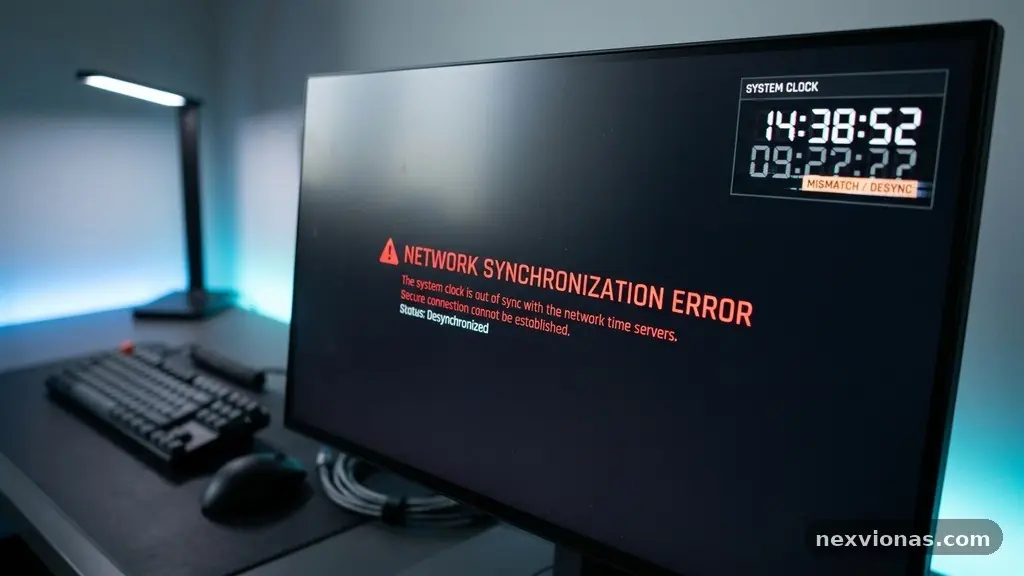
Why Automatic Date and Time Settings Matter for Internet Connections becomes clear whenever a perfectly good device suddenly rejects a website, refuses a login, or reports that a certificate is invalid. Your system clock quietly supports secure browsing, DNS resolution, software updates, cloud synchronization, and many account checks.
Keeping the device date and time accurate is not just a convenience. It helps computers agree on the sequence of online events, trust HTTPS security certificates, and communicate reliably with routers and remote servers. A few practical settings can prevent hours of confusing troubleshooting.
Why accurate time affects internet access
Automatic date and time settings matter because internet connections depend on more than a working Wi-Fi signal or an active Ethernet cable. Devices also need a trustworthy system clock so they can interpret security credentials, scheduled requests, and network messages correctly.
The most visible example is an SSL/TLS certificate. Websites use these certificates to prove their identity and create an encrypted HTTPS connection. Each certificate has a validity period, so a computer with the wrong date may believe a current certificate has not started yet or has already expired.
That can produce warnings such as “Your clock is ahead,” “Your clock is behind,” or “The certificate is not yet valid.” The website may be safe, and the connection may be functioning, but the browser cannot safely verify it while the local time appears false.
Accurate time also supports authentication. Some workplace systems, virtual private networks, email services, and two-factor authentication tools compare time-sensitive information. If a device clock drifts substantially, a one-time code may be rejected or a secure session may fail during sign-in.
Time synchronization gives devices a shared reference point. Most systems ultimately relate their clocks to UTC, or Coordinated Universal Time, then display the local time using the selected time zone settings. This separates the universal reference from the regional clock shown on screen.
The practical answer is simple: leave automatic date and time enabled unless you have a specific technical reason to manage the clock manually. Also enable automatic time zone detection when it works reliably in your location.
How network time protocol keeps devices aligned
Computers commonly use the network time protocol (NTP) to obtain a dependable time reference from a time server. An NTP-enabled device sends timing requests, receives a timestamp, and adjusts its local clock based on the estimated difference between the two systems.
NTP does more than ask a server for the current hour. It accounts for transmission delay, because a response takes a small amount of time to travel across the network. The protocol uses several timestamps to estimate that delay and improve the accuracy of time synchronization.
Most consumer devices don’t need laboratory precision. A clock that stays close to the correct time is usually enough for certificate validation, browsing, ordinary account access, and routine internet connectivity. Financial trading, telecom systems, scientific equipment, and industrial controls may need much tighter tolerances.
When automatic time is enabled, a laptop or phone typically contacts a configured time source periodically rather than relying on one adjustment forever. That matters because every quartz clock drifts. Temperature, battery condition, hardware quality, and age can all influence how quickly the system clock loses or gains seconds.
Routers may also participate in this process. A router can provide time information to devices on a local network, or it may obtain time from an upstream NTP server. If the router configuration blocks NTP traffic, points to an unavailable server, or has a badly incorrect internal clock, connected devices may struggle to update themselves.
Some networks restrict outbound traffic for security or operational reasons. In those environments, an administrator may provide an internal time server instead of allowing every computer to reach a public service directly. The goal remains the same: give systems a consistent and trustworthy reference.
The National Institute of Standards and Technology Internet Time Service explains how internet-based time distribution works and why accurate time supports technical systems. It is a useful reference when a home or office network needs more than basic device settings.
SSL/TLS certificates and HTTPS security
Web browsers rely on SSL/TLS certificates to establish HTTPS security. A certificate usually identifies a domain name, contains a public key, and includes dates that define when the certificate can be trusted. Your browser checks those details before it treats the encrypted connection as valid.
Certificate validation therefore depends on the local date. Suppose a certificate is issued on March 1, but a computer believes the date is February 20. The browser may conclude that the certificate is premature and block the connection, even though the website and certificate are operating normally.
The reverse problem is just as common. If the computer thinks it is several months in the future, a certificate that is valid today may appear expired. Browsers may show a serious warning because bypassing that warning could expose the user to an impersonated website.
That warning is doing its job. A visitor should not simply disable HTTPS security checks or click through a certificate error without understanding the cause. Correcting the system clock is safer than weakening the browser’s protection.
Many people associate certificate errors only with websites, but the same principle affects applications. A desktop email client, software updater, password manager, game launcher, or cloud-storage tool may also use TLS connections and reject a server certificate when the device date is wrong.
Certificate validation can fail for other reasons, including an incorrectly configured server, a missing certificate authority, or a genuine security problem. The date should be checked early because it is a quick, low-risk explanation that users can often fix themselves.
After correcting the clock, close and reopen the affected browser or application if the warning remains. Some programs cache connection results, and a new session may be necessary before they perform certificate validation again.
DNS resolution, logins, and everyday services
DNS resolution translates a human-friendly website address into an IP address. A wrong device clock does not usually break DNS directly, but it can make the broader connection appear broken when DNS succeeds and the following secure connection fails.
That distinction helps with troubleshooting. If a browser finds the website’s address but then reports a certificate error, the issue may be time rather than DNS. If no domain resolves at all, investigate the router, DNS server, firewall, or internet service separately.
Online accounts also use time in less obvious ways. A service may attach timestamps to login attempts, refresh tokens, password-reset links, or device-registration records. If the device appears to be far outside the expected time window, the service may reject the request to prevent replay attacks.
Two-factor authentication apps provide a familiar example. Time-based one-time passwords are generated from a shared secret and the current time, usually in short intervals. A phone that is several minutes out of alignment can display codes that the server considers old or not yet valid.
Cloud storage and collaboration tools use timestamps to decide which copy of a file is newer. A clock that jumps into the future can make a local file appear more recent than a colleague’s update, creating confusing synchronization conflicts.
Browsers and applications also use time to manage cookies, cache entries, scheduled tasks, and session expiration. A false date can cause a session to end immediately, make a download link appear expired, or prevent a newly installed program from checking for updates correctly.
Not every failed connection is a clock problem. A damaged network adapter, incorrect proxy, captive portal, overloaded DNS service, or expired account can produce similar symptoms. Accurate time removes one important variable and makes the remaining diagnosis clearer.
Time zones and daylight saving time
A device has two related but different time settings: the underlying reference used for synchronization and the local display shown to the user. Time synchronization typically uses UTC, while time zone settings determine whether the screen shows London time, New York time, Tokyo time, or another regional value.
This distinction prevents a common misunderstanding. A computer can display the wrong local hour even when its UTC-based clock is accurate, simply because the selected time zone is incorrect. A traveler who changes countries may need to update the time zone even though automatic synchronization remains enabled.
Daylight saving time adds another layer. In regions that observe it, the local clock changes according to official rules, while UTC does not shift. Operating systems use time-zone databases to apply those changes, but outdated software or a manually selected zone can produce an incorrect local display.
The wrong local display can affect appointments, calendar invitations, delivery estimates, transport alerts, and scheduled uploads. It may not always cause an HTTPS failure, yet it can still create costly mistakes when a system interprets a deadline or appointment in the wrong region.
Automatic time zone detection often uses location services, network information, or the mobile carrier. Privacy settings, weak signals, travel across borders, and corporate restrictions can make detection imperfect. If the displayed time is wrong but the minutes and seconds appear to advance normally, check the time zone before changing the clock itself.
Businesses with staff in several regions should store important event times in UTC or with an explicit time-zone label. “Meeting at 10:00” is ambiguous; “10:00 Eastern Time” or “15:00 UTC” gives distributed teams a dependable reference.
| Setting or reference | What it controls | Common problem when incorrect |
|---|---|---|
| UTC | Shared global time reference | Logs, authentication, and server comparisons become inconsistent |
| Time zone | Local clock displayed on the device | Appointments and scheduled actions appear at the wrong hour |
| Daylight saving rule | Seasonal local-time adjustment | Recurring events shift by an hour in affected regions |
| Automatic synchronization | Periodic correction of clock drift | Certificate, login, and network errors grow as the clock drifts |
What happens on Windows, phones, and routers
Different platforms expose different controls, but the underlying principle is consistent. The operating system maintains a system clock, selects a time source, and periodically corrects the displayed time when automatic settings are active.
On Windows, the Windows Time service helps maintain clock synchronization. Users can usually find the relevant controls under Date & time settings, where they can turn on automatic time, choose a time zone, and start a manual synchronization attempt.
If a Windows computer belongs to an organisation, its time may be controlled by domain policies. Domain environments often expect computers to maintain a close relationship with approved time sources, because large clock differences can interfere with authentication and administrative services.
Android and iPhone devices generally obtain time from the mobile network or internet-connected services. The exact menu names vary by version, but automatic date, time, and time-zone switches are normally grouped together in the system settings.
A phone can show the wrong time after a SIM change, international travel, disabled location services, or a carrier configuration issue. Checking the automatic time zone option, restarting the phone, and reconnecting to the mobile network often reveals whether the problem is local or provider-related.
Home routers may have their own date and time page, often under administration, system, or advanced settings. Correct router time helps with event logs, parental-control schedules, firmware tasks, VPN negotiations, and security records, even when individual devices synchronize independently.
Some routers have a setting for an NTP server or allow the administrator to choose a region. A router that has never been configured, cannot reach its time server, or resets after a power failure may repeatedly return to an incorrect date.
Firmware matters too. Older operating systems and routers may contain outdated time-zone rules, especially after governments change daylight saving policies. Installing supported updates can correct those rules without requiring users to set the clock manually every season.
Security, privacy, and accurate event records
Correct time strengthens security because security systems need a credible sequence of events. Logs record when a login occurred, when a firewall blocked traffic, or when a certificate was checked. If each device reports a different date, investigators may struggle to reconstruct what happened.
Security teams often compare logs from endpoints, routers, servers, and identity systems. A consistent clock lets them connect an account sign-in with a VPN session, an application request, and a network alert. Even a modest discrepancy can make that timeline harder to interpret.
Time synchronization does not prove that a device is secure. Malware, compromised servers, and forged timestamps can still mislead investigators. Accurate clocks are one supporting control among many, alongside strong authentication, current software, access restrictions, and reliable backups.
Privacy-conscious users sometimes worry that automatic time settings reveal their location. Automatic time alone usually provides limited location information, but automatic time-zone detection may use network or location data. Users who prefer manual control can select a time zone themselves while still keeping the clock synchronized.
For organisations, centralised time management offers both operational and security benefits. An administrator can specify approved sources, monitor drift, and alert when a workstation stops synchronizing. Public networks, guest devices, and personal phones may follow different policies, so the source of time should be documented.
Accurate timestamps also matter for legal and operational records. A support ticket, transaction, access request, or maintenance event is more useful when its time can be compared with other records. The value comes from consistency, not from pretending that every consumer clock has atomic-clock precision.
How to troubleshoot a wrong device clock
Start with the simplest check: confirm whether the date, hour, minutes, and time zone are all wrong or only one of them is incorrect. A one-hour difference often points to a time-zone or daylight-saving setting, while a date years in the past suggests a failed synchronization or depleted hardware clock battery.
Use this practical sequence:
- Turn on automatic date and time.
- Confirm the correct time zone and daylight-saving option.
- Connect to a reliable Wi-Fi, Ethernet, or mobile network.
- Trigger a manual synchronization if the operating system offers one.
- Restart the browser or application showing the error.
- Check router configuration and NTP access if several devices have the same problem.
- Install pending operating-system or firmware updates.
If synchronization fails, read the exact error rather than repeatedly changing the date by hand. Messages about an unreachable time server may point to a firewall, blocked UDP traffic, DNS failure, captive portal, or network policy.
Try another permitted time source only if your device or organisation allows it. In a managed environment, changing the source without approval can create a larger mismatch with the domain or central authentication system.
When the clock resets after every shutdown, investigate hardware. Desktop computers and some specialised devices use a small real-time-clock battery to preserve basic date and time information while powered off. A failing battery can cause recurring certificate and login failures after each restart.
For a single website, compare the result on another correctly configured device. If both devices show the same certificate warning, the site or its certificate chain may need attention. If only one device fails, its system clock, browser, or local trust store is more likely to be responsible.
Don’t bypass a certificate warning as a permanent fix. Correct the clock, inspect the network path, and contact the service administrator when the certificate remains invalid after local time has been verified.
Benefits for homes, workplaces, and connected devices
In a home, accurate time prevents small problems from spreading across several connected devices. A television may need correct time to authenticate a streaming service, a smart speaker may need it to refresh an account token, and a security camera may depend on accurate timestamps for recorded footage.
Parents who use scheduled internet access should pay attention to the router clock. A router that believes it is in the wrong time zone can permit or block devices at unexpected hours, making a perfectly configured schedule appear unreliable.
Remote workers benefit from accurate time when connecting to company VPNs, signing documents, joining calendar events, or using identity platforms. A laptop with the wrong clock may be able to browse some ordinary sites but still fail during the more tightly controlled corporate sign-in process.
Small businesses should check clocks on routers, point-of-sale equipment, servers, cameras, and employee computers. Consistent timestamps make customer-support investigations and payment-system troubleshooting less confusing, particularly when multiple vendors provide different parts of the network.
Internet of Things devices can be especially difficult to diagnose because they may have limited screens and weak error messages. Enabling automatic time at the router or during the device’s initial setup gives connected sensors and appliances a better chance of validating cloud connections.
There are also accessibility benefits. Correct time supports medication reminders, transport notifications, emergency alerts, and calendar prompts. A clock error can turn a minor inconvenience into a missed appointment or an unsafe delay.
- Browsers: more reliable HTTPS certificate checks.
- Authentication: fewer failures with time-sensitive codes and secure tokens.
- Routers: more accurate schedules, logs, and firmware tasks.
- Cloud services: cleaner file synchronization and session management.
- Workplaces: clearer event timelines across servers and devices.
- Families: dependable reminders, controls, and connected-home routines.
Frequently asked questions
Can incorrect time stop Wi-Fi from working?
Incorrect time usually doesn’t disable the radio connection itself. However, it can prevent the device from completing HTTPS authentication, joining a secured service, validating a portal, or signing into an account, which makes the internet appear unavailable.
Should automatic time zone detection be enabled?
Usually, yes, especially on phones and laptops that travel. If detection repeatedly selects the wrong region, choose the correct time zone manually while leaving automatic clock synchronization enabled.
Does changing the date fix a certificate warning?
It can fix a warning caused by a wrong local clock, but changing the date is not a safe general solution. Verify the actual date and time, then investigate the certificate or contact the website owner if the warning remains.
Why does my clock keep becoming incorrect after a restart?
A failed real-time-clock battery, blocked time service, incorrect firmware, or a policy that overwrites settings can cause repeated resets. If several devices are affected, inspect the router or network time source before replacing hardware.
Is NTP safe to use?
NTP is a standard method used by operating systems and network equipment to obtain time. Use a trusted, approved time source, keep devices updated, and follow workplace policies rather than changing network settings casually.
Conclusion
Why Automatic Date and Time Settings Matter for Internet Connections is ultimately a question of trust and coordination. A correct clock helps browsers validate certificates, services accept secure logins, routers record useful events, and devices agree about when something happened.
Keep automatic date and time enabled, verify the time zone, and check NTP or router settings when several devices fail together. Those small steps can restore internet connectivity without weakening HTTPS security, and they give every connected device a more dependable foundation.