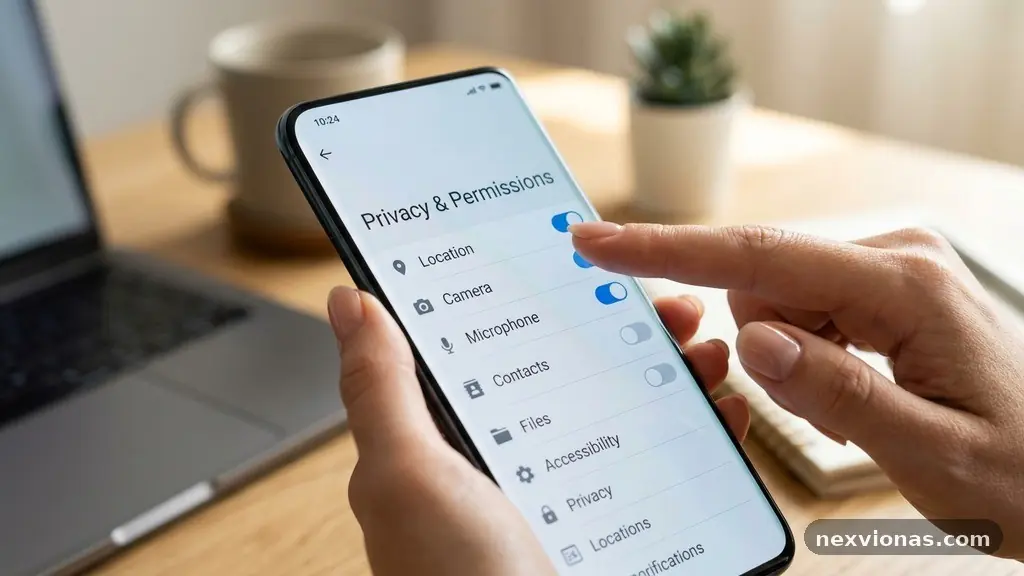
Reviewing App Permissions After a Major Operating System Update is one of the simplest ways to regain control of your phone’s privacy. A major release can reset prompts, introduce new permission categories, or change how an existing setting works without making every consequence obvious.
The safest approach is practical rather than alarmist: check which apps can reach sensitive data, remove access they no longer need, and test essential features afterward. You’ll also learn how Android and iPhone tools differ, why “only while using” matters, and how to spot permissions that deserve a second look.
Start With the Permissions That Matter Most
The quickest answer is to open your phone’s central privacy controls and review access to location, microphone, camera, contacts, photos, and notifications. Those categories can reveal more about your daily habits than a long list of ordinary settings.
On Android, the path is usually Settings > Security and privacy > Privacy > Permission manager, although menu names vary by manufacturer and Android version. On an iPhone, open Settings > Privacy & Security and choose a category such as Location Services, Microphone, Photos, or Contacts.
Begin with apps you no longer recognise, apps you rarely use, and apps that request access unrelated to their main job. A calculator asking for contacts permission is unusual, while a video calling app requesting microphone and camera access is expected when those features are active.
For each questionable entry, select the most limited option that still lets you use the app. That might mean “While Using the App” for location, “Selected Photos” instead of an entire photo library, or no access at all until the app genuinely needs it.
Don’t delete an app simply because it has one permission you dislike. First, revoke permissions, open the app, and see what breaks; a useful service may work perfectly with narrower access, and the next request will show you when a feature really needs additional data.
This first pass should take only a few minutes. It gives you an immediate privacy improvement before you spend time examining every app individually.
Prepare for a More Reliable App Permissions Audit
A rushed audit can create unnecessary frustration, especially if you review permissions while travelling, working, or trying to use an important service. Set aside a quiet period and make sure you know your device passcode, account password, and any app-specific login details before changing settings.
Update the operating system completely, then restart the phone before beginning. Some privacy controls appear only after an update finishes installing, and a restart can make delayed permission prompts or system notices visible.
Keep a short note of changes you make. You don’t need a complex spreadsheet, but recording that a banking app lost contacts access or that a delivery app changed to approximate location makes troubleshooting much easier later.
- Review apps you installed before the operating system update.
- Check apps that have not been opened for several months.
- Look at permissions marked as always allowed, full access, or background access.
- Confirm that work, school, banking, transport, and health apps still provide essential functions.
- Remove apps you no longer use instead of leaving their accounts and permissions active.
Take screenshots only when they help you remember a complicated setting, such as a family member’s device or a phone managed by an employer. Avoid storing screenshots that expose private account details, health information, or message previews.
It’s also useful to check your backup and device-sharing arrangements. A permission change affects the phone in your hand, but synced accounts, tablets, smartwatches, and family devices may have separate settings that still allow similar access.
Think of the audit as maintenance, not a one-time panic response. New apps, feature updates, and changes in your routine can make an old permission unnecessary even if the original installation was perfectly reasonable.
Use Android’s Privacy Dashboard and Permission Manager
Android offers two helpful views after a major update: the Privacy Dashboard, which shows recent access activity, and the permission manager, which lets you inspect access by category. The dashboard answers “which apps used this recently?” while the permission manager answers “which apps can use this at all?”
Open the Privacy Dashboard from the privacy section of Settings. Depending on the Android version, you may see recent activity for location access, camera access, microphone access, and other sensitive categories over a selected period.
The activity timeline can expose surprises that a static permission list misses. An app that has microphone access but has not used it recently may be harmless, while an unfamiliar app that repeatedly checks location in the background deserves closer attention.
Android’s menus differ across Samsung, Google Pixel, OnePlus, Motorola, and other phones, so follow the wording on your screen rather than relying on an exact button sequence. Google’s official Android privacy controls overview explains the main concepts when the manufacturer’s menu is confusing.
In the permission manager, choose a category and examine the access level assigned to each app. Location settings commonly include Allow all the time, Allow only while using the app, Ask every time, and Don’t allow.
Reserve “Allow all the time” for apps that genuinely provide a background service, such as a trusted navigation or safety tool. A shopping app usually does not need constant location access simply because it can show nearby stores when opened.
Android may also offer one-time permissions, auto-reset for unused apps, and approximate location. These features work together: one-time access helps with a single task, automatic resets reduce forgotten permissions, and approximate location limits precision without blocking location-based features completely.
Check the dashboard again after changing settings. If an app stops appearing in an access timeline, that confirms the restriction is active, though you should still test the app’s main functions rather than assuming every feature behaves identically.
Review iPhone Controls in the Settings App
On an iPhone, the iOS Settings app places privacy controls under Settings > Privacy & Security. Each category presents a list of apps and an explanation of what access means, making it easier to work through camera, microphone, contacts, photos, and location separately.
Location Services deserves special attention because iOS can distinguish between access while using an app and access in the background. If an app does not need a precise address, turn off Precise Location while leaving approximate location available.
A weather app may function with approximate location, while a turn-by-turn navigation app needs accurate position data during a journey. That difference lets you preserve useful features without granting more detail than the task requires.
Open Settings > Privacy & Security > Tracking to review App Tracking Transparency choices. You can disable permission for individual apps or turn off requests entirely, although this controls cross-app tracking rather than every form of advertising or analytics.
Photos has a similarly useful distinction. Instead of granting full photo library access, choose selected photos if the app only needs an image for a profile, listing, attachment, or message.
For microphone and camera permissions, iOS displays coloured indicators when those sensors are active. An orange indicator generally signals microphone use, while a green indicator signals camera use or combined camera-and-microphone access; the Control Center can show recent sensor activity.
Review notification permissions separately from sensor access. Notifications cannot usually read your entire message history, but previews on a locked screen can expose appointment details, delivery information, or one-time login codes to anyone who can see the display.
After restricting access, open the affected app and try its central task. If a photo editor cannot import a selected image, or a video app cannot record sound, you can restore only the specific permission needed rather than returning to broad access.
Match Each Permission to the App’s Actual Job
Permission names can sound equally serious, but their practical importance depends on context. The right question is not “Does this app have access?” but “What does this app need to do, and does the requested access match that job?”
| Permission | Reasonable examples | Questions to ask |
|---|---|---|
| Location access | Maps, weather, delivery, transport | Does it need background access or only use-time access? |
| Microphone access | Calls, voice recording, video meetings | Does the app record audio as part of its main function? |
| Camera access | Photography, scanning, video calls | Can the feature work with an uploaded image instead? |
| Contacts permission | Calling, messaging, address-book sharing | Can you choose individual contacts rather than the whole book? |
| Photo library access | Editing, printing, social posting | Does it need selected photos or the complete library? |
| Notification permissions | Messages, travel alerts, account security | Could lock-screen previews reveal private information? |
Contacts permission is often broader than people expect. A messaging app may use contacts to find friends, but a coupon app, game, or simple utility should explain a clear benefit before receiving access to everyone in your address book.
Photo library access deserves the same scrutiny because a complete library can contain documents, children’s photos, travel records, and screenshots of private conversations. Selected-photo access is usually a better fit for an app that only needs one image at a time.
Background app refresh is not identical to a permission for a sensor or personal data category. It controls whether an app can update content in the background, so disabling it may reduce data use and battery drain, but it can also delay messages, news updates, or travel information.
Camera and microphone access should be judged by frequency as well as purpose. A video meeting app may need both during calls but not while you browse its settings or read old messages.
Use the principle of least-privilege access: allow the smallest amount of access that supports the feature you actually use. This is not about making every app impossible to use; it is about avoiding permanent, unnecessary access.
Work Through Apps One at a Time
A category-based review is efficient, but an app-by-app pass adds context. Open each important app’s information page and identify its purpose, last use, developer name, account status, and permissions before deciding what to change.
Start with apps that handle valuable information, including banking, health, workplace, education, travel, shopping, and private communication services. These apps may legitimately need sensitive access, but they also deserve careful confirmation after a major operating system change.
Ask why an app needs each permission today, not why it might have needed it when you first installed it. A social network may once have needed camera access for frequent posting, while you now use it only to read updates in a browser-like feed.
Look for duplicated apps and forgotten trials. If two photo editors, three shopping apps, and several old games remain installed, removing the ones you no longer use reduces future prompts, background activity, and account exposure.
When an app requests a new permission after the update, pause before tapping Allow. Read the explanation, consider whether the feature is optional, and choose “Don’t Allow” or a limited setting if the request does not fit the app’s central function.
Some apps provide their own privacy controls in addition to operating system permissions. Review account-level settings for contact syncing, personalised advertising, cloud backups, location history, and automatic uploads, because revoking device access may not erase information already stored in the service.
Testing matters after every important change. Make a call, scan a document, upload one selected photo, request a ride, or complete another small task that reflects how you use the app.
If the app fails, restore access temporarily and look for a narrower alternative. A prompt that appears only when you start a feature is often preferable to a permission that remains active all day.
Check for Background Activity and New Prompts
Some privacy changes are visible immediately, while others appear through daily use. After your initial audit, watch for repeated permission requests, unexpected battery drain, unusual mobile data use, and sensor indicators that appear when you are not using a related feature.
On Android, the Privacy Dashboard can help connect recent camera, microphone, or location activity to a specific app. On iPhone, the App Privacy Report can show how often apps accessed sensors and which domains they contacted, provided you enable it and allow time for data to accumulate.
These reports are clues, not automatic proof of wrongdoing. A navigation app may access location several times during a trip, and a messaging app may contact many domains to deliver images, prevent abuse, or load content.
Background app refresh can be tuned according to importance. Keep it available for services where timely information matters, then disable it for games, stores, and rarely used apps that do not need to prepare content before you open them.
Notification permissions also benefit from a second pass. Disable promotional alerts while keeping security warnings, direct messages, calendar changes, and transport updates that have a clear practical value.
Pay attention to new prompts after an app update. Developers sometimes add a feature that changes why access is requested, and an operating system update may present that request again in a more visible format.
Review permissions again after installing an unfamiliar app, changing your work or travel routine, or restoring a phone from backup. A restored device can bring back old app settings that no longer match how you use the phone.
Finally, keep the operating system and apps updated through official stores. Updates do not replace a privacy review, but they can fix permission bugs, improve explanations, and add controls that were unavailable during the previous release.
FAQ About Post-Update Permission Reviews
Can an operating system update change app permissions?
Yes. An update can introduce new permission categories, alter default behaviour, reset access for unused apps, or ask for a decision again when an app uses a feature under new rules. It does not necessarily grant every app more access, but the permission screen may look different afterward.
Should location access be set to “Never” for every app?
No. A blanket rule can make maps, emergency tools, transport apps, and local weather features less useful. Choose “While Using,” “Ask Next Time,” or approximate location when those options provide the function you need without continuous precise tracking.
Is it safe to deny microphone and camera access?
For most apps, yes, provided you do not need recording, scanning, calling, or video features. You can deny access initially and grant it temporarily when the app presents a genuine task that requires the sensor.
What happens if I revoke a permission by mistake?
The app may show an error, hide a feature, or ask again the next time you use it. Reopen the relevant privacy category, restore only the required access, and test the feature; revoking a permission usually does not delete the app or its account.
Do permission settings delete data an app already collected?
Usually not. Revoking device access stops or limits future collection through that permission, but information already uploaded may remain in the app’s account or cloud storage. Use the service’s account controls or privacy request process if you want stored data removed.
Make the Review a Small, Repeatable Habit
Reviewing App Permissions After a Major Operating System Update works best as a calm routine: start with sensitive categories, compare access with each app’s real purpose, and choose limited settings wherever they are practical. Android’s Privacy Dashboard and iPhone’s privacy reports can then help you confirm what happens after the changes.
Set a reminder to revisit permissions after major updates, app installations, or changes in your daily routine. A few minutes spent checking location access, camera access, contacts permission, and notification settings can keep your phone useful while giving you a clearer say over your personal information.