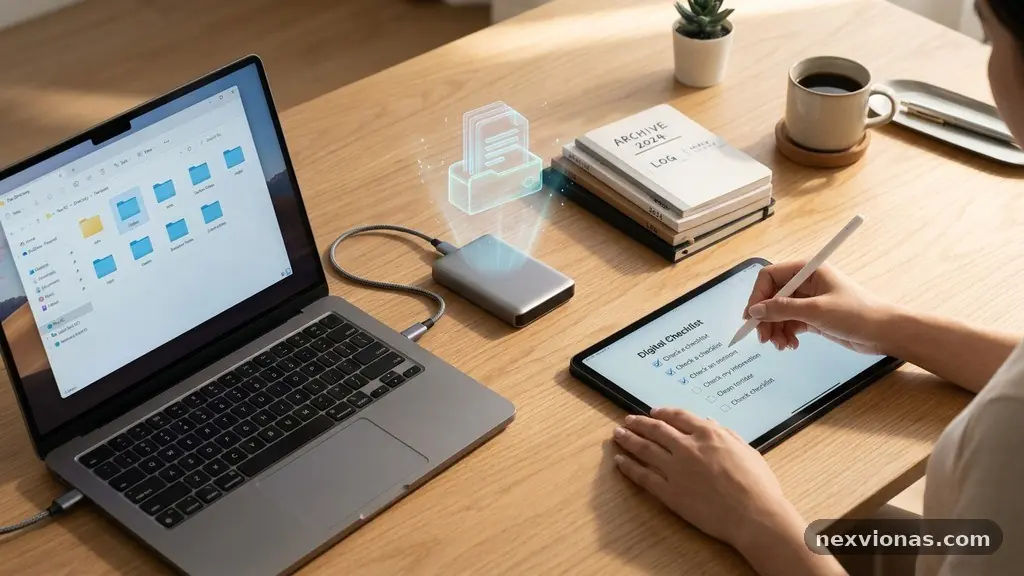
Before moving files to a new computer, check that your data is backed up, readable, secure, and compatible with the system waiting for it. A rushed data transfer can leave behind family photos, browser bookmarks, email archives, saved passwords, or software settings that you assumed would move automatically.
Taking a little time to audit the old computer gives you a clean inventory and a safer plan. The most important checks are storage capacity, file health, account access, operating system compatibility, and a second copy of anything you cannot replace.
Start With an Inventory and a Real Backup
The first answer to what to check before moving your files to a new computer is simple: identify what must move, what can be archived, and what should be deleted. Open your Documents, Desktop, Pictures, Videos, Downloads, and any custom folders you created outside the standard locations. Work applications may also store important data in hidden folders, local databases, or project directories that aren’t obvious from a quick glance.
Make a written inventory or export a folder listing before you begin. Include personal files, work projects, tax records, scanned documents, music, photos, browser bookmarks, email archives, and configuration files for programs you use regularly. If a folder has an unclear name, open a few files before deciding that it is unimportant.
A file backup should exist before the first file is copied to the new machine. The safest basic arrangement is the 3-2-1 backup approach: keep three copies of important data, use two different storage types, and keep one copy away from the computer you are replacing.
- Keep the original files on the old computer until the new system has been tested.
- Make a separate copy on an external hard drive or another trusted storage device.
- Use cloud storage for irreplaceable documents and selected photographs when the service supports your file sizes and privacy needs.
- Record the location of unusual folders, application data, and local email databases.
- Open a sample of backed-up files, including documents, images, videos, and spreadsheets, to confirm that the copy works.
Cloud storage is useful, but synchronization is not always the same as an independent backup. If a file is deleted or encrypted by malware in a synchronized folder, that change may be copied to the cloud as well. Check whether your provider offers version history, a recycle bin, or a separate backup feature before relying on it as your only safety net.
Don’t erase, sell, or reset the old computer immediately after the transfer. Keep it powered off when possible, but available for reference until you have opened the important files, signed into key services, and confirmed that your backup has not been damaged. This simple delay can save weeks of work if a folder was overlooked.
Measure Storage and Check Compatibility
Compare the amount of data on the old computer with the usable disk space on the new one. A new computer advertised with a 512 GB drive may have less available space after the operating system, recovery partition, preinstalled applications, and system-reserved files are included. Check the actual free space in the file manager rather than relying on the label on the box.
Leave room for future updates and working files. A computer that is nearly full may slow down, fail to install updates, or struggle with temporary files created by video editors, photo applications, and large databases. If the old machine contains 420 GB of data and the new machine has only 450 GB free, moving everything without cleaning or expanding storage is a poor plan.
| Check | Why it matters | What to record |
|---|---|---|
| Total data size | Shows how much must be copied | Folder sizes and overall used space |
| Available disk space | Reveals whether the new computer can hold the files comfortably | Free space after system setup |
| File system | Can affect large-file support and cross-device use | NTFS, exFAT, APFS, or another format |
| Operating system compatibility | Older applications and file formats may behave differently | Operating system versions and software requirements |
| Connection speed | Determines how long a large data transfer will take | USB, network, or cloud transfer method |
Operating system compatibility deserves special attention if you are moving between Windows and macOS, changing from a 32-bit application to a 64-bit environment, or replacing an older system with a newer release. A file may copy perfectly but still fail to open because the application that created it is unavailable or no longer supports that format.
Check files created by older programs before the move. Examples include legacy database files, proprietary design projects, old accounting records, and video projects tied to a particular application version. Exporting a document to a widely supported format can help, but keep the original file too in case you later need its layers, metadata, or editing history.
External hard drives can make the transfer easier, especially when the old and new computers use different operating systems or are not located together. Before using one, check its capacity, cable type, encryption status, and file system. A drive formatted for one platform may be readable but not writable on another without additional software.
Secure Accounts, Passwords, and Personal Information
Files are only part of a computer move. Your browser bookmarks, saved passwords, email archives, address books, cloud accounts, and two-factor authentication methods may be more important than the folders you can see. Make a separate account checklist so you can regain access even if the old computer is unavailable.
Use a reputable password manager to confirm that your logins are synchronized or exported through the service’s approved process. Don’t place an unencrypted password export in a Downloads folder or on a shared external drive. If you must create an export, protect it with encryption, transfer it privately, and delete the temporary copy after importing and verifying the credentials.
Review browser bookmarks manually before transferring them. Remove obsolete links, then export the remaining bookmarks or confirm that browser synchronization is active under the correct account. Saved passwords, extensions, autofill data, open tabs, and browsing history may each use different synchronization settings, so don’t assume that bookmarks prove everything else has moved.
Email requires its own check. Webmail accounts usually keep messages on the provider’s servers, but locally stored email archives may exist in formats such as PST, MBOX, or application-specific databases. Identify where those archives live, note their size, and confirm that the email program on the new computer can import them before deleting the old profile.
Make a list of security devices and recovery options. Include authenticator apps, hardware security keys, recovery codes, backup phone numbers, and certificates used for work or government services. A new computer may trigger additional identity checks, and a forgotten recovery method can turn a routine transfer into a locked-account problem.
Sign out of services that limit the number of activated devices, but do so at the right time. Some software and subscription services require you to deactivate the old computer before activating the new one, while others let you manage devices through an online account. Review the provider’s instructions rather than repeatedly entering passwords or removing files at random.
Clean, Organise, and Inspect the Files
A move is a good opportunity to reduce clutter, but cleaning should happen after the backup is complete. Sort files by type, project, year, or owner so that the new computer starts with a structure you can maintain. A folder called “Old Stuff” rarely helps six months later, while folders named “Invoices 2024” or “Client Project North—Final” provide useful context.
Look for duplicate files created by downloads, phone imports, cloud synchronization, or repeated backups. Duplicate files can consume substantial disk space, but automatic cleanup tools sometimes mistake edited versions for duplicates. Compare file names, dates, sizes, and contents before deleting anything that might represent a separate revision.
Inspect files that trigger errors or take unusually long to open. A document that was already corrupted on the old computer may be copied faithfully but remain unusable on the new one. Try opening important files in their original applications, and create a fresh backup copy of any file that opens correctly but appears unstable.
Run a malware scan before transferring executable files, installers, scripts, macros, or unknown downloads. Moving an infected folder to a clean computer can recreate the original security problem. For practical preparation, review the Cybersecurity and Infrastructure Security Agency’s ransomware guidance, particularly its advice on backups and suspicious activity.
Be careful with temporary folders and application caches. Browser caches, crash reports, old installers, and thumbnail databases are usually unnecessary, but some programs store unsaved work or offline content in places that look temporary. Search the program’s documentation or create a backup before removing unfamiliar data.
Separate personal material from sensitive work or financial information if another person will use the old machine. Copies of identity documents, payroll files, medical records, and tax returns should not remain in an unprotected Downloads folder. After the transition is complete, use the old computer’s secure erase or factory-reset process rather than simply dragging files to the Recycle Bin.
Choose the Transfer Method Deliberately
The best data transfer method depends on the volume of files, network quality, privacy requirements, and whether both computers can be used at the same time. A direct computer-to-computer connection can be convenient for a moderate transfer, while an external hard drive is often more predictable for many hundreds of gigabytes. Cloud storage works well for selected folders when upload speeds and account limits are acceptable.
Don’t begin by copying every folder at once. Start with a small, representative group containing documents, photos, large videos, and files with unusual names. This test can reveal permission problems, unsupported characters, connection failures, or a file system that cannot handle the transfer as expected.
File permissions can prevent access after a move, particularly when transferring between user accounts, operating systems, network locations, or encrypted folders. A copied file may appear in the right location but still refuse to open because its original owner or access rules do not exist on the new system. Check permissions on shared folders and work files before assuming the transfer failed.
Use a stable connection for large transfers and avoid relying on a battery-powered laptop halfway through the process. Keep both computers plugged in, disable sleep temporarily if appropriate, and prevent the cable or external drive from being disturbed. If the transfer tool supports logs, save them so you can identify skipped or failed files.
Cloud storage may take longer than expected because upload speed is usually much slower than download speed. A large photo library can also exceed account limits or become mixed with files already synchronized on the new machine. Create a clear destination folder and confirm the provider’s sync status before moving files into the main library.
Preserve folder structure and filenames unless there is a clear reason to change them. Applications often expect related files to remain together, and renaming hundreds of items can break links inside project files. If you reorganise during the move, keep a simple map showing where the original folders went.
Prepare Applications, Licenses, and Settings
List the applications you actually use before copying their folders. Program files alone rarely recreate a working installation because applications may depend on registry entries, system components, drivers, fonts, plugins, or activation records. Download installers from official sources and confirm that each program supports the new operating system before removing the old setup.
Software licenses deserve an early check. Record product keys where permitted, identify subscription accounts, and look for activation limits or deactivation procedures. Paid applications may require a sign-in rather than a key, while older programs may need an installer and license file that is no longer available from the publisher.
Export settings from applications that support it. Email signatures, custom dictionaries, keyboard shortcuts, templates, presets, font collections, and saved workspace layouts may not be included in a normal document copy. A photographer’s presets or a writer’s citation database can represent years of accumulated work even though the files occupy little disk space.
Review file associations after installing programs on the new computer. A double-click on a spreadsheet, image, or audio file may open the wrong application if several compatible programs are installed. Set associations deliberately, then open several examples from each major file type rather than trusting the icon displayed in the file manager.
Printers, scanners, audio interfaces, VPN clients, and other accessories may need fresh drivers. Check the manufacturer’s support page for the new operating system and processor type before connecting older hardware. If a device is no longer supported, export or save any settings you might need while you still have access to the old computer.
Don’t copy questionable system folders or replace new operating-system files with versions from the old machine. That approach can create conflicts and security weaknesses. Move personal data, export supported settings, and reinstall software cleanly unless the application’s documentation specifically recommends another method.
Verify the New Computer Before Retiring the Old One
Verification should be treated as a separate stage, not a quick glance at a few folders. Compare the number of files and total sizes in key directories, then open important items from different categories. Check a recent document, an older document, a high-resolution photograph, a long video, a compressed archive, and any file that uses a specialist application.
Test your everyday workflow. Open a browser, visit a saved bookmark, send and receive a test email, print a document, connect to cloud storage, and launch the programs you use for work or study. A transfer is successful only when the files and the tasks built around them work together.
Check that cloud services have finished synchronizing rather than showing only locally cached content. Look for warning icons, paused uploads, conflict copies, and files marked online-only. If the provider displays a sync count or activity panel, wait until it reports completion before treating the cloud copy as verified.
Review security settings on the new system. Confirm that automatic updates, a firewall, screen locking, encryption where appropriate, and a malware scan are active. Encryption is especially important if the laptop may be lost, because a strong login password alone may not protect data stored on an unencrypted drive.
Confirm that the new user account has the correct file permissions. Test access as the person who will actually use the computer, not only as an administrator. Shared household folders and work directories should be accessible to the intended users without making private documents visible to everyone.
Keep the old computer untouched until the final review is complete. A practical waiting period depends on how important the files are, but it should include at least one normal work cycle and one backup cycle. Once you are confident, wipe the old device securely, remove it from account device lists, and store or recycle it through a reputable channel.
FAQ: Moving Files to a New Computer
Should I move files before setting up the new computer?
Set up the new computer first, including system updates, your main user account, security settings, and available storage checks. Moving files after that initial setup gives you a stable destination and makes it easier to spot problems caused by permissions, unsupported software, or insufficient disk space.
Is an external hard drive safer than cloud storage?
Neither option is automatically safer in every situation. An external hard drive gives you direct control and can be faster for large collections, while cloud storage offers off-site protection and access from multiple devices; using both creates stronger protection than choosing only one.
How do I know whether files are corrupted?
Open important files on the old computer before copying them, then open the copied versions on the new one. Compare file sizes and, for especially important data, use checksum software or the backup program’s verification feature to confirm that the copies match.
What happens to my installed programs?
Most installed programs need to be downloaded and installed again rather than copied as ordinary folders. Check software licenses, activation limits, saved settings, plugins, and required drivers before removing the old installation.
When can I erase the old computer?
Wait until you have verified important files, completed at least one new backup, confirmed account access, and tested your normal workflow. Then sign out of services, remove the device from account dashboards, and use a secure reset or erase process instead of deleting files manually.
Make the Move With Confidence
The safest way to check before moving your files to a new computer is to treat the process as an audit, not a single copy command. Back up first, measure disk space, inspect file health, protect account access, check operating system compatibility, and verify the new setup before retiring the old one.
Start with your most valuable files and test the transfer in a small batch. Once the new computer has passed those checks, continue in organised groups and keep a second backup until you are certain nothing important was missed.