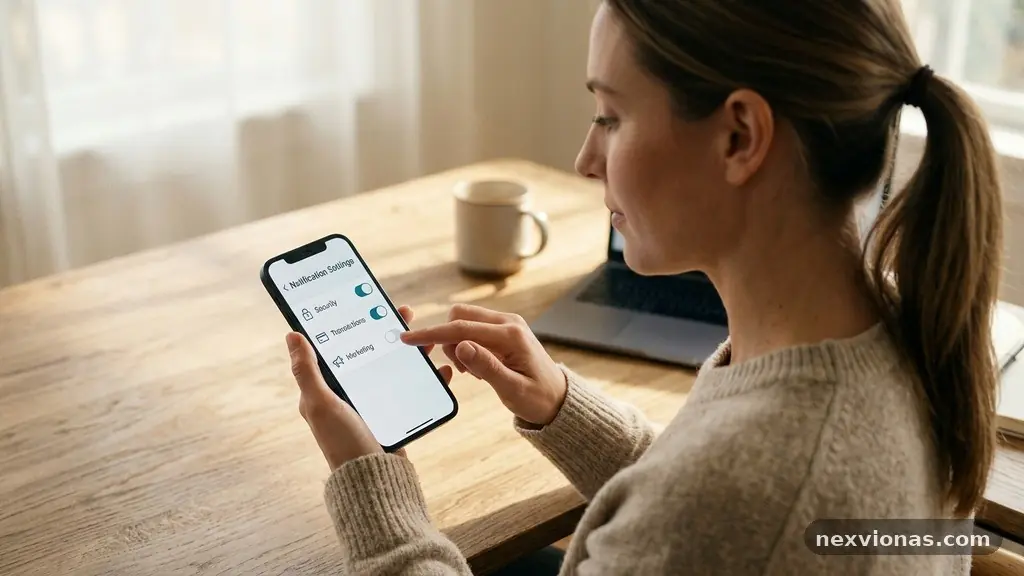
Reducing Notification Overload Without Missing Important Alerts starts with deciding which messages deserve your immediate attention and which can wait. The aim isn’t to silence your phone completely; it’s to create a calmer system where a call from an emergency contact feels different from a sale, reaction, or routine update.
With a short audit, thoughtful notification settings, and a few scheduled check-ins, you can cut distraction without becoming unreachable. The practical steps below work across phones, email, work chat, calendars, and smartwatches.
Start by Separating Urgent From Merely New
The fastest way to reduce notification overload is to sort alerts into three groups: urgent, useful, and disposable. Urgent alerts require action within minutes, useful messages can wait until a planned check-in, and disposable notifications add little value even if they appear frequently.
Emergency contacts, direct calls from family, fraud warnings from a bank, medication reminders, and severe weather notices may belong in the first group. A social media reaction, shopping discount, game reward, or news headline usually belongs in the third.
Ask one simple question for every app: “Would I want this to interrupt dinner, sleep, a meeting, or focused work?” If the answer is no, the alert shouldn’t normally produce sound, vibration, or a lock-screen interruption.
This is the heart of alert prioritization. You aren’t judging whether an app is good or bad; you’re judging the timing and consequence of its messages.
| Alert type | Recommended treatment | Examples |
|---|---|---|
| Critical | Allow sound and urgent interruption | Emergency contacts, medical alerts, fraud warnings |
| Important | Allow quietly or during scheduled periods | Calendar reminders, direct work messages, delivery updates |
| Low priority | Batch, mute, or disable | Likes, promotions, game notices, routine recommendations |
| Unnecessary | Turn off completely | Repeated marketing prompts and engagement nudges |
Make this classification before opening individual app menus. Otherwise, every alert can feel equally important simply because it is visible and recent.
Audit Every App Before Changing Settings
Notification overload often develops gradually. A new app asks for permission once, a work tool adds another alert category later, and a shopping service begins sending promotional push notifications after a purchase.
Start with your phone’s notification history if it offers one. On Android, the notification history feature can show which apps have been interrupting you, while iPhone users can review recent alerts in Notification Centre and inspect each app’s settings.
Write down the apps that appear most often during a typical day. The list may surprise you: a weather app might be useful once in the morning, while a social platform could produce dozens of low-value interruptions.
For each app, decide whether notifications should be allowed, silenced, scheduled, or removed. Don’t treat the choice as permanent; a setting can change when your job, travel plans, health needs, or family circumstances change.
Use categories instead of all-or-nothing choices
Many modern apps divide alerts into app notification categories. A banking app may separate transactions, marketing, security notices, and account reminders, while a messaging app may distinguish direct messages from group activity.
Keep security and transaction alerts active, but turn off promotions and routine suggestions. In a group chat, you may want mentions and direct replies while muting reactions or every new message.
For a reliable reference on Android controls, the official Android notification settings guidance explains how to manage app-level permissions and alert behaviour. Menus differ by device maker, so the labels on your phone may not match the examples exactly.
Review permissions with a deadline
If you can’t decide whether an alert is useful, mute it for one week rather than leaving it active by default. At the end of that period, check whether you missed anything that required immediate action.
This small experiment prevents permanent decisions based on guesswork. It also reveals which apps rely on anxiety, urgency language, or repeated reminders to pull you back into their feeds.
Build a Small List of Alerts That Can Break Through
A quiet phone is only helpful if truly important messages still reach you. Create a short allowlist of people, services, and situations that may interrupt you during focused time or overnight.
Emergency contacts should be limited to people who might genuinely need to reach you quickly. Adding an entire family group, a large work team, and several acquaintances defeats the purpose because every conversation begins competing with a real emergency.
Calls often deserve different treatment from messages. You might allow repeated calls from selected contacts while keeping ordinary text messages silent, since two calls within a short period can signal that the matter is urgent.
Critical alerts deserve special care because some platforms let certain apps bypass normal silent settings. Use that power sparingly, and only for services whose alerts have a clear safety or time-sensitive purpose.
- Choose a small group of emergency contacts.
- Allow calls from those people during sleep or focused work.
- Keep banking security, fraud, and authentication alerts active.
- Permit calendar reminders for events with real consequences.
- Disable marketing messages even if the same app sends useful updates.
- Test the allowlist from another device or with a trusted contact.
Remember that “important” depends on context. A delivery alert could matter during a medical shipment, while a routine parcel notification may be irrelevant during a long meeting.
Protect the lock screen
Lock screen notifications create two separate issues: interruption and privacy. A message preview can expose sensitive information to anyone near your phone, even when the alert itself is legitimate.
Consider showing only the app name until the device is unlocked. For banking, health, legal, and workplace apps, hiding previews is often more useful than disabling the underlying notification.
Use Do Not Disturb and Focus Mode With Intention
Do Not Disturb and Focus mode work best as schedules, not emergency buttons you remember only after distractions become unbearable. Set a sleep schedule, a work block, and perhaps a personal evening period that automatically changes what can interrupt you.
A work Focus mode might allow calls from family, calendar reminders, navigation, and direct messages from a manager. It might silence social apps, news, retail alerts, and nonessential group conversations until the focus period ends.
Keep the profile narrow at first. If you add ten exceptions immediately, you’ll preserve much of the old noise and may conclude that the system doesn’t work.
Match modes to real situations
Different activities call for different rules. Driving mode should prioritise navigation and hands-free communication, while sleep mode may allow only emergency contacts and alarms.
Exercise mode could silence work chat without blocking music controls or safety-related calls. A meeting mode might allow a calendar reminder five minutes before the appointment but suppress every other banner.
Use automatic triggers where they make sense, such as a time window, a workplace location, or a connected car. Manual activation remains valuable for unexpected focus periods, but automation removes the need to remember every transition.
Some devices offer an option for repeated calls to break through. That can help if someone calls twice because the matter is urgent, but test the timing and understand whether a marketing caller could trigger it.
Check your modes after major software updates. A platform may rename controls, add new categories, or change how app permissions interact with Focus mode.
Batch Routine Messages Instead of Chasing Them
Notification batching replaces scattered interruptions with deliberate review times. Instead of responding whenever a message appears, choose periods when you’ll process routine updates in groups.
Email is a natural place to begin. Create filters for newsletters, receipts, promotions, automated reports, and social notifications, then route them into folders or labels that don’t generate immediate push notifications.
Keep direct correspondence visible if a fast reply matters, but don’t confuse “arrived in the inbox” with “requires action this minute.” A message can remain available without producing a sound.
Choose realistic check-in windows
Two or three email reviews may suit a desk-based role, while a customer-support position may require a shared queue or service-level target. The right schedule depends on the consequences of delay, not on a universal productivity rule.
Calendar reminders should protect commitments rather than create more clutter. Keep alerts for appointments, travel departures, deadlines, and preparation tasks, but remove duplicate reminders that announce the same event through three different apps.
For news and content feeds, a morning or evening digest often works better than breaking-news alerts. You still receive the information, but you choose when to absorb it.
Notification batching also helps with emotional fatigue. A stream of tiny updates can make a person feel perpetually behind, even when none of the messages is individually important.
Set a response expectation
Batching works more smoothly when colleagues know how to reach you for urgent matters. A status message can say that direct messages are checked at set times and that a phone call is the route for genuine emergencies.
This prevents people from escalating every ordinary request simply because they don’t see an instant response. It also gives you permission to work without monitoring every channel continuously.
Calm Work Apps Without Losing Team Coordination
Work platforms can generate more noise than personal apps because one conversation may appear in desktop notifications, mobile banners, email, and a smartwatch. Slack notification preferences, Microsoft Teams settings, and project-management alerts should be coordinated rather than configured independently.
Choose one primary channel for urgent work. If a direct message, an email, and a task comment all represent the same request, decide which one carries the deadline and mute the duplicates.
In Slack, many people benefit from allowing direct messages and mentions while muting general channel activity. A busy project channel can remain available for later reading without announcing every reply.
Use keywords carefully. A project code or client name may help surface relevant messages, but broad terms such as “help,” “issue,” or “urgent” can create another flood of false alarms.
Separate availability from attention
Your status can communicate that you are working without promising an immediate reply. A focus indicator, calendar integration, or short status note gives colleagues context while leaving your notification rules intact.
Teams should also agree on escalation norms. For example, an ordinary task can live in the project board, a same-day concern can use a direct message, and a genuine emergency can use a phone call.
That structure reduces personal notification fatigue because people no longer need to monitor every channel in case an important request appears in the least suitable place.
Check whether a work app sends email copies of chat messages. If your team already uses the app as the source of truth, those duplicate emails can usually be disabled or routed to a low-priority folder.
Design the Physical Environment Around Fewer Interruptions
Digital settings are only part of the problem. A phone placed face-up beside your keyboard can pull attention even when its sound is off, because movement and glowing previews invite a glance.
During focused work, place the device out of reach or turn the screen away. A smartwatch may need its own adjustment because wrist taps can recreate the same interruption that you removed from the phone.
Use visual indicators selectively. A silent banner that appears for every message still fragments attention, even if it doesn’t make noise.
Create a reliable checking ritual
Choose a repeatable routine for reviewing muted alerts. For example, check notifications after finishing a task, before lunch, and at the end of the workday.
Keep the review short and action-oriented. Delete, archive, delegate, schedule, or respond, rather than opening every app and drifting into unrelated content.
Make sure your routine includes missed calls, voicemail, calendar changes, and security alerts. People often mute one channel successfully but forget that important information is arriving somewhere else.
At home, agree on exceptions with the people closest to you. A partner may need a direct call to reach you during quiet hours, while routine household updates can wait until the next check-in.
Reduce visual noise
Remove notification badges from apps that don’t require an immediate response. A red number on a social platform turns an optional update into a visual demand every time you unlock the phone.
Keep only essential widgets and shortcuts on the first screen. The fewer attention-grabbing elements you see, the easier it becomes to use the device for a specific purpose and leave it alone.
Test the System and Adjust It Gradually
A notification plan should be tested like any other practical system. After changing settings, ask a trusted person to call, send a message, and contact you during a Focus period so you can see what actually happens.
Check whether emergency contacts can reach you, whether alarms still sound, and whether calendar reminders appear at the intended times. Also confirm that your phone, tablet, computer, and watch aren’t producing duplicate alerts for the same event.
Keep a short note of anything you missed. If a deadline notification disappeared into a batch, change that specific category instead of restoring every alert from the app.
Review the setup after one week, then again after a month. The first review catches technical mistakes, while the later review reveals whether the arrangement fits your real routines.
| Problem noticed | Likely adjustment |
|---|---|
| You miss direct work requests | Allow mentions or direct messages during work hours |
| Promotions keep interrupting you | Disable marketing categories and email push alerts |
| You miss overnight calls | Add selected emergency contacts to Do Not Disturb exceptions |
| Duplicate alerts appear everywhere | Choose one primary device and mute secondary copies |
| Quiet periods feel too restrictive | Create a shorter Focus schedule or add one verified exception |
Change one or two controls at a time. A wholesale reset makes it difficult to identify which setting solved a problem or created a new one.
Frequently Asked Questions
Will turning off notifications make me miss an emergency?
Not if you preserve a carefully chosen route for emergencies. Allow calls or messages from selected emergency contacts, keep relevant safety and security alerts active, and test the arrangement rather than assuming it works.
Should every message from my family bypass Do Not Disturb?
Usually not. Select the people who may genuinely need immediate access and use calls for urgent situations, while keeping routine group conversations and casual updates available during normal check-ins.
How often should I check email after disabling push notifications?
Choose a schedule that matches your responsibilities. Many people can start with two or three planned reviews, but roles involving live customer support, clinical care, or active operations may require faster monitoring.
What is the difference between silent notifications and disabled notifications?
Silent notifications still arrive and can usually be reviewed later, but they don’t create sound or vibration. Disabled notifications don’t arrive through that channel at all, which is better for promotions and low-value alerts you never intend to review.
Why do I still feel distracted after reducing alerts?
Notification fatigue can continue if you repeatedly check apps without receiving a notification. Remove badges, move tempting apps away from the home screen, and use scheduled review periods so the habit isn’t driven by curiosity alone.
Make Quiet Attention the Default
Reducing Notification Overload Without Missing Important Alerts becomes manageable when you define a small set of true exceptions and let everything else wait. Start with one audit, one Focus schedule, and one reliable emergency route rather than trying to redesign every device in a single afternoon.
Review the results after a week, keep what protects your responsibilities, and remove what merely pulls at your attention. A calmer notification system should make important messages easier to notice, not make you harder to reach.